Showing posts with label event-specific content. Show all posts

Monday, June 20, 2016

Partner Showcase - Seattle Shakespeare Company

When you think of Shakespeare, you probably don't think of mobile apps.  But Seattle Shakespeare Company does.  For the past two years, they have used their mobile app to connect contemporary audiences with the power and vibrancy of Shakespeare and other classical playwrights.

We recently spoke with Communications Director Jeff Fickes to find out what prompted Seattle Shakespeare Company to pursue their mobile engagement strategy.

Jeff Fickes
Why did you decide to offer a mobile app for your patrons?
When mobile apps first appeared in the marketplace, I knew that I wanted Seattle Shakespeare Company to have one. We had meetings did some research, and then saw that the development was going to be out of our reach since we’re a relatively small company.

But I kept dreaming. I had been doing a lot of reading about the direction of consumer trends and everything I read pointed me in the direction of optimizing for mobile usage. We redesigned our website to be mobile responsive and optimized our email campaigns to be read on mobile devices. I still kept thinking about a mobile app.

Click on image for a closer look.
We’re a theatre company that performs in three different indoor venues, 13 different outdoor venues, and has a tour that performs all over the state. We are a mobile theatre company. I wanted us to be easily accessed where ever our patrons are and to be able to communicate with them whether they’re in a theatre, seeing a park show, or a student seeing Shakespeare for the first time with one of our tours.

Why did you choose InstantEncore’s mobile app solution?
I actually stumbled upon InstantEncore. I was searching around in the App Store to see what other theatre companies were doing in terms of mobile apps, and saw that some of the larger theatre organizations across the country (Guthrie Theatre, Arena Stage, and Berkeley Rep) were using InstantEncore. I immediately requested a demo and got very excited about the prospect of making a long term goal happen.

InstantEncore offers a great deal of flexibility and allows you to tailor the app to your own needs. It worked with our ticketing system and the pricing was within our budget. I didn’t need a lot of convincing. We started devising a plan for how we wanted to use the app and got it set up within a week or so after signing up.

Seattle Shakespeare Company uses
their app's At-The-Venue feature
to engage audiences at performances.
Click on image for a closer look.
How have you promoted your mobile app to your patrons?
We’ve promoted the app through lobby signs, curtain speeches, our website, email notices and program ads. We’ll most likely do a small facebook digital ad campaign in conjunction with our upcoming outdoor shows this summer, as we’ve found it to be very useful for locating which park show is performing where - since the shows are in a different location practically each night.

What are the main benefits of your mobile app for your patrons?
Aside from being able to engage with patrons on a device that many people have a personal attachment to, I believe it’s worked well for us from a branding standpoint. We were one of the first theatre companies in Seattle to have a mobile app.

Just the fact that a theatre company of our size who focuses on classical plays has an app says something about the company. It sort of shakes off the perceived stodginess of classical plays and gives people a digital interaction in addition to the stage experience.

I believe that patrons start to experience the play well before they enter theatre. They’re conceiving of it in their mind through the advertising images and words written about it. If they’re engaging with the play (learning about it and the company) through a mobile device and can do it where ever they may be (on the bus, waiting in line at the store, at home on the couch) we become much more a part of their lives. The perception of the work on stage takes on a different relevance because we’ve engaged with them on their terms, on their time. The art can seem more relevant to a contemporary world because the engagement was digital.

SSC uses push notifications to
send contextually relevant messages
to patrons. Click on image for a
closer look.
Which feature do you like best? Why?
I love the At-The-Venue feature. I believe that if a patron feels informed about the show they’re about to see, that their experience of it is better. We include video welcome messages, things to know, directors notes, cast bios as well as special offers to entice them to buy in our shop or make a purchase of their next ticket.

We’ve also run some very unique sales promotions (including a one day $12 ticket promotion in honor of the Seahawks being in the Super Bowl) that utilized the push notifications and custom tabs.

What’s the feedback on the app been like from your patrons?
We’ve gotten good feedback and have seen the app consistently utilized, especially on show days. I think that adoption has been slow and most of the people regularly using are “super fans.”

What has customer support been like?
Customer support has been great. I like that the product continues to be developed with new features added.

Monday, May 30, 2016

Automatically Enhance the Audience Experience with At-The-Venue

Since 2014, InstantEncore's mobile suite has enabled performing arts organizations to enhance the audience experience with event-specific content released within their mobile app on the day of the performance.

Our new At-The-Venue (ATV) feature uses automation tools to make this easier than ever before. With At-The-Venue, you can automatically generate an ATV experience for every event in your calendar AND identify specific content to be included in every ATV experience.

ATV's automation tools help you to consistently enhance the audience experience for every event, amplify the relevancy of your app for patrons, and save staff time by reducing app management tasks

Sync ATV with Your Events


Prior to the release of At-The-Venue, app administrators needed to manually create experiences for events on their calendar. Now, you can synchronize the creation of ATV experiences with Events in your app.  And all it takes is the click of a button!

Click on image for a closer look
  • In your account, go to Mobile >> At-The-Venue
  • In the Checklist on the right, click on Sync with Events
  • Click on the Enable Sync button
Once you enable the sync, an ATV experience will be generated for each upcoming Event. The follow items will be automatically included in the experience:

Monday, May 9, 2016

10 Tips for Managing Geofences - Connecting When and Where It Counts

Geofences allow you to create location-based triggers around your venue. Think of it as putting a ring around your theater, concert hall, museum or other venue. When your patrons cross the geofence ring, they receive a customized message on their phone prompting them to open your mobile app.

Here are 10 tips for maximizing the effectiveness of your geofences:

Getting Started


Create one single Geofence.
1. Keep it Simple.
There will always be some give and take with determining a user’s location. Especially when considering all of the technologies and factors that go into it. As an example, avoid placing one Geofence around your venue, another around the parking lot next door, and a third one for the coffee shop across the street with which you have a partnership.

Even if a user parks in the lot and grabs a cup of coffee across the street before heading into the event, they might end up receiving the event notification first, then one for the coffee shop, and lastly for the parking lot at which point they’re already in your lobby.

TIP: Use one Geofence to surround everything and then supply parking and coffee shop information as part of the At-The-Venue (ATV) Experience content.

2. Encompass the Entire Venue. And a Little Bit More.
The size of your Geofence is important. The minimum diameter is 200 meters (or about 650 feet) which will cover most small to medium sized venues. Increase the size as needed to cover larger venues. But don’t make it too big as users who have the App might receive a message even though they are not attending the event.

TIP: First, adjust your Geofence so that the entire venue is inside of it. Then expand it to add some buffer room. An extra 50 to 100 meters wouldn’t be unreasonable.

3. Managing Multiple Venues.
A single venue is easy. Create your Geofence, set an Any Time or ATV message, and you’re done! But for our partners who present at different venues, Custom Messages are key.

TIP: You can use these to create time-specific messages at each Geofence for each event. This will help you avoid sending messages to people if they happen to arrive at a location when you don’t have an event going on there. You can also mix-and-match. Setup a main Geofence with an Any Time message and Geofences for special venues with only Custom Messages.

Monday, March 28, 2016

Partner Showcase: Dallas Summer Musicals

As the preeminent nonprofit presenter of Broadway theatre in North Texas, Dallas Summer Musicals (DSM) produces, presents and promotes excellence in live musical theatre with year-round performances for diverse audiences of all ages.  Since its launch in October 2014, the DSM mobile app has garnered nearly 7,000 downloads from patrons.

We recently talked with DSM's Amanda Farrow, Marketing & Social Media Coordinator, about their mobile app and how their patrons have responded to it.

Amanda Farrow
Why did you decide to offer a mobile app for your patrons?
We were looking for a way to engage our patrons while they're in the theater and give a more in-depth look at the touring shows we bring to the Music Hall. We also wanted an easy point of reference for our patrons to get more information about tickets and a behind-the-scenes look that our website didn’t offer. Additionally, we wanted to send instant alerts and the push notification feature was exactly what we needed.

Thursday, August 27, 2015

At-The-Event Resource Roundup

This is the future of mobile technology in the arts: creating an enhanced event experience for your audience.  At-The-Event gives you the tools for sharing event-specific content, increasing social activity, and encouraging ongoing attendance.

As we approach the start of the 2015-16 season, lets revisit At-The-Event:  what it is, how to set one up, and how to get people's eyes on it. 

Introduction:

At-The-Event Setup:

Promotion:

Spotlight from the Field:

Additional Resource:

Thursday, August 6, 2015

At The Event - Partner Spotlight: Pittsburgh Symphony Orchestra

Since 1896, the Pittsburgh Symphony Orchestra has been enriching the lives of audiences with world-class music.  Now at the start of their 120th season, PSO expands this tradition by utilizing their mobile app's At-The-Event feature to enhance the concert experience for the 21st Century.  Their audiences now have easy access to a variety of event-specific content, social interactions with artists and patrons, and special offers.

At-The-Event Recap


The At-The-Event Checklist highlights
available content items and provides
one-click access for easy editing.
When setting up At-The-Event,  it is important to provide as many content options as possible.  You don't want to advertise exclusive or event-specific content to your audience without providing them with an experience that lives up to its promise.

At-The-Event has three main content areas:

  • The Info screen contains features such as: 
    • Check in (This feature doesn't require any setup, it just works!)
    • Things to Know
    • Program Notes
    • Artist Bios
    • Custom actions - links to other content tabs or websites.  
  • The Social feed aggregates posts from Twitter or Instagram with a defined #hashtag and adds posts made using the In-App form.  
  • The Offers area lets you showcase specific deals, promotions, and partnerships to your patrons.


Now, lets take a look at how Pittsburgh Symphony Orchestra used each of these areas for their recent concert event - FUSE@PSO: Brahms + Radiohead.

Thursday, June 25, 2015

Setting up a Facebook Call-to-Action Button

The 1.50 update brings some great changes to your Mobile App, both on the surface and under the hood.  One less than obvious update has been the inclusion of what are known as "Deep Links".  These are links that let you direct people to specific tabs in your app from external sources.

Now, Facebook has added a "Call-to-Action" button which allows you to easily add an important task as a button on your Page's banner image.  Lets look at how we can use Deep Links with this button to let your Fans effortlessly access your Mobile App from your Facebook page.

First, go to your Page and find the "Create Call to Action" button.  It is important to note that this is for Pages, and not your personal Timeline.


When you click on this, you will see a pop-up box which has a "Choose a Button" menu.  Open this and select "Use App".


Once you have selected the type of Call-to-Action, there will be a place to enter in two URLs.  One for your website and one for your mobile website.  Because we want to focus people's behavior on using your Mobile App, create a SmartURL (remember those?) for this purpose and add it to both fields.


The next screen will let you setup your iOS Deep Link.  Use the format instantencoreCID://deeplink/#home where CID is the same value used in the SmartURL.  The Backup Destination will be automatically filled in from the website field.


The Android Deep Link setup is similar, but you will also need your Android Package Name. To find this, just go to your main control panel, copy the link for the Android App, and use the end of the URL that starts with "com.instantencore".


So, https://play.google.com/store/apps/details?id=com.instantencore.bcsd2go_5109242 becomes just com.instantencore.bcsd2go_5109242.  Again, the Backup Destination will be automatically added.


Click the final Create button and you will be all set.  Your Facebook fans will now have easy access to your Mobile Apps!

  • If they already have your app installed, it will immediately open it.  
  • If they don't yet have your app, the SmartURL will intelligently direct them to the proper platform.  
  • If the button is clicked on a desktop or laptop computer, it will give them links to both.


Finally,  if you have a campaign going on for a specific event or initiative, you can go back to edit the "Use App" button and update the App Links to go to a specific content item or tab in the App.  Just replace the #home at the end of the Deep Link with a different "In-app Link" using InstantEncore's App URL Builder, available at the bottom of your list of Tabs in the Control Panel.


BONUS: Facebook offers some insights on how many times the button has been clicked.  Just look for the "This Week" box to the right and click on where it says "Use App"


Tuesday, March 31, 2015

The Repertoire Section: Getting Creative with Work Titles

At the heart of any event listing are a few key pieces of information:  when is it, where is it, and what is it?

To answer this last question, each event entered in the InstantEncore control panel features a Repertoire section - a list of musical works to be performed during the event. These works are then tagged with even more information, such as the composer of the music and any artists or ensembles who are performing on it, letting the audience know exactly what is in store for them.

http://instantencore.com/concert/details.aspx?PId=5114463
Click this image to see the complete Event listing.

But wait!  What if my event doesn't have classical music or any music at all?

Due to the wide variety of types of events, there is some flexibility in the system.  Here are some tips and examples for using the Repertoire area if you're not presenting classical music.

The Biggest Secret

When adding a new Work Title to the system, you can actually leave the Composer field blank even though it is listed as "Required Info."


In fact, we encourage you to leave this blank unless you are adding the name of the person who composed the music. Authors, choreographers, and others - though important - should be set in the Miscellaneous field if you wish to tag them.

You can then set the Title to whatever you want! Lets take a look at a few examples.

Dance

Dance and ballet can have strong ties to classical music, but the focus is often more on the dancers and choreographers than the people who perform the music.

Major ballets, such as Tchaikovsky's Nutcracker or Prokofiev's Romeo and Juliet, will be listed as normal music works.

Shorter, non-programmatic dance pieces can be added with "Dance Name (Choreographer)" in the Title field while leaving the Composer field blank.  This shifts the focus away from the music and towards the choreographer.

Dancers can be added as Artists.  For their instrument, a "Dancer" option is available.

http://instantencore.com/concert/details.aspx?PId=5104875
Click this image to see the complete Event listing.


Theatre

Theatrical works are even more straightforward.  Again, leave the Composer field blank. Enter the name of the production in the Title field, and tag any additional relevant information.


http://instantencore.com/concert/details.aspx?PId=5104875
Click this image to see the complete Event listing.


Popular Music

Oftentimes, popular solo artists or bands will not have a predefined program.  For these, you can use the "Program TBA" feature as provided, or if you want to be more specific, you can add something more descriptive such as "Program to be announced from stage" in the example below.


http://instantencore.com/concert/details.aspx?PId=5115855
Click this image to see the complete Event listing.


Getting Creative

Sometimes your event just doesn't fit any predefined category.  Set a work title that briefly describes the event. This can be anything you want, but short, informative descriptions are the best.  Keep in mind that if it is generic enough, you will be able to use it again for similar events in the future!

This Saturday matinee concert featuring a mix of music and visual performing arts is best described as a "Free Event."

http://instantencore.com/concert/details.aspx?PId=5113080
Click this image to see the complete Event listing.


The Elmhurst Symphony's Art of Conducting event is part of their "ESO Lecture Series."

http://instantencore.com/concert/details.aspx?PId=5114445
Click this image to see the complete Event listing.

If you have questions on how to use the Repertoire area to best represent your event, contact support@instantencore.com

Thursday, January 22, 2015

Using Your App's Offers Tab to Drive Revenue, Encourage Participation, and More

At-The-Event's Offers tab is a powerful tool help drive revenue in creative ways.  From discounts to merchandise to upgrades, the Offers tab can present deals to your audience which are specifically relevant to that day's event.

Lets look at a few general categories of Offers:

Discounts


Discounts are perhaps the most straight forward Offer you can provide.  These include a percentage-based or fixed amount reduction on ticket sales, gift shop merchandise, concession items, etc.  You might even explore partnering with a local restaurant to provide discounts on meals to help drive customers to both businesses.

Alabama Dance Festival: 15% off Tickets


Detroit Symphony: 10% off Food & 10% off Gifts


Berkeley Rep: Free cookie with drink purchase


Pittsburgh Symphony Orchestra: Dinner and a Show


Merchandise


Let your audience know about new recordings, apparel, or other fun souvenirs that they can purchase.

Bach Collegium San Diego: New CD Release


SFJAZZ: 'A Love Supreme' 50th Anniversary Shirts


Activities


You can also use the Offers tab to make your audience aware of fun activities such as parties, receptions, or artist signings.

UMKC: Pre-concert reception


SFJAZZ: 'A Love Supreme: The Story of John Coltrane's Signature Album' Book signing


Special Access


The Offers tab can be used in creative ways such as giving your audience access to special opportunities exclusively through the app.  Making tickets available for pre-sale, upgrading your seat, turning a single ticket into a season subscription, and music downloads are just a few of the endless possibilities.

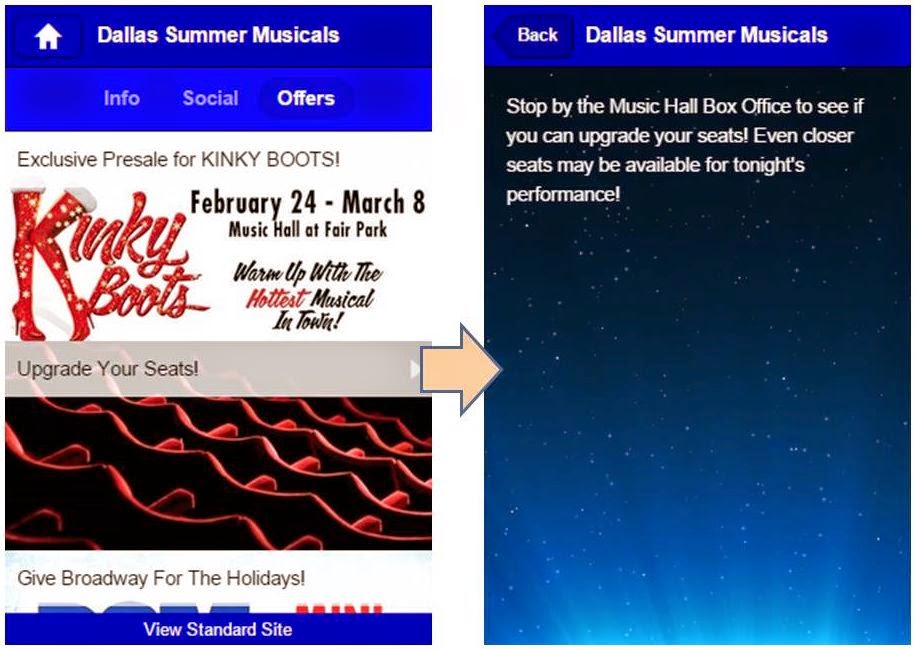
Dallas Summer Musicals: Pre-sale Tickets & Seat Upgrades


Indianapolis Chamber Orchestra: Turn your Ticket into a Subscription


CYSO: Music Download


Enter to Win!


Use the Offers area to promote competitions,  raffles, or other sweepstakes that audience members can enter by posting in the Social tab or filling out a form linked as a custom action in the Info tab.

The School of Theatre at Florida State University: Win Free Tickets


Thursday, December 11, 2014

Encouraging Your App Subscribers to Get Social

The Social screen in your mobile app's At-The-Event module enables your app subscribers to post photos and text messages about the event and respond to each other's content.  The Social screen aggegates posts from the In-app form as well as posts to Instagram and Twitter featuring the event's hashtag.

To post to the Social screen, the app subscriber taps on the pencil icon and selects the platform they would like to use to share their content.

Example: The Social screen for Berkeley Repertory Theatre's production of Party People.
Simply providing the tool, however, does not mean that your app subscribers will use it.  So how can you encourage your audience to engage via social media when they are at your performance?

Put Your Patrons in the Picture 


Culture Track 2014 recently surveyed patrons to determine how they use their mobile devices while attending cultural events.  The most popular activities among respondents were taking photos (66%) and sharing photos (47%).  Some arts organizations are rightfully concerned about copyright issues and the potential for disrupting a performance.  So, here are some ideas for encouraging photo taking and sharing while simultaneously protecting copyright and the integrity of the live performance.
  • Selfie Campaigns - "Selfies" are photographs that mobile users take of themselves and their friends using their smartphones or tablets. Selfie campaigns have emerged among arts organizations as a way to galvanize social media participation among audiences.  Selfie campaigns encourage patrons to take photos of themselves and their friends at your event and post it to social media with a corresponding hashtag.
    • Both Twitter and Instagram allow mobile users to post pictures from their devices, which makes it easy for your app subscribers to post photos to the Social screen.
    • Promote the selfie campaign on-site with signage in public spaces and a mention in your printed program  
    • Promote the selfie campaign within the app by (1) using the Spotlight Text area on the Info screen, (2) including it as one of the items in Things to Know (see the example below), and/or (3) linking from the Info screen to a custom tab describing the campaign.
    • Consider incentivizing selfie campaigns by offering participants a chance to win a backstage tour, a chance to meet the artists, tickets to upcoming shows, etc.
Detroit Symphony Orchestra incentivized participation in their selfie campaign by offering
participants the chance to win a VIP table for 4 at an upcoming event.
  • Selfie Stations - Take your selfie campaign to the next level by setting up "selfie stations" where patrons are encouraged to take pictures of themselves and their friends with artists, background images, or props featured in the event.

    Example: For their production of A Christmas Story, The Musical, Dallas Summer Musicals created a selfie station with a cardboard cut-out of the character Ralphie and the show's iconic leg-shaped lamp.  The station also featured a background with DSM's logo.
Audience members took pictures with a cardboard cut-out of the main character and an iconic
prop at the Dallas Summer Musical's production of A Christmas Story, The Musical.
  • Volunteer Selfie Takers - Sometimes, it's difficult to get a great photo when you have to hold the camera yourself.  Help your patrons get the best possible photo at your event by providing volunteer selfie takers.  
    • They are responsible for offering to take pictures of patrons using the audience member's mobile device and encouraging patrons to post their photos to Twitter or Instagram with the events hashtag.
    • Position volunteers at selfie stations, near iconic artwork in the venue, or roaming throughout public areas before the performance, during intermission, and after the show.
    • Provide volunteers with buttons, T-shirts, hats, or some other item clearly marking them as a "Volunteer Selfie Taker."
    • By using a term like "selfie taker" or "photo taker," you reduce any expection  for the volunteers to be professional photographers.

Let the Audience Guide the Conversation


  • Invite Questions - For most live performances, the audience does not have an opportunity to directly engage with the artists.  The Social screen can serve to facilitate conversation between artists and your patrons by inviting app subscribers to submit questions for artists to answer. 
    • The questions may be answered directly by the artist within the app or during a live post-performance Q&A session.
    • Use signage in public spaces and a mention in the printed program to invite patrons to download your app and submit their questions.
    • Within the app, use the Spotlight Text area on the Info screen or an item in Things to Know to invite your app subscribers to submit their questions.
Austin Symphony Orchestra displays slides on digital screens in the lobby to invite patrons
to download the ASO app to chat with Maestro Bay and musicians.

A second slide provides instructions for downloading the app and using the Social screen.

During intermission, Maestro Bay answers questions directly within the ASO app.

  • Tweet Seats - In recent years, many performing arts organizations have experimented with "tweat seats" - a section of the audience (usually the back row or upper balcony) where audience members are encouraged to converse with one another during the performance via social media.  The Social screen is a great tool for facilitating this form of interactive engagement.
    • Some organizations set aside tweet seats for each performance. Others restrict tweet seats to specific performances.  
    • Still other organizations like Opera Omaha offer tweet seats to the final dress rehearsal for a production.
    • If you are interested in trying tweet seats at your events, the Arts Management & Technology Lab published an article earlier this year highlighting lessons learned from their experiment with Carnegie Mellon University's School of Music.

Give Them a Chance to Win


  • Incentives - One tactic for spurring more participation in the Social area of your app is to include an incentive for patrons.  With an incentive, the patron becomes eligible for a reward by simply engaging in the desired behavior. 
    • For example: In exchange for sharing a selfie or submitting a question, participants become eligible to win two tickets to an upcoming show.  
    • Tickets are one possible incentive, but not the only viable one.  You could offer a chance to win a backstage tour, a free drink from the concession stand, , etc. Get creative!
    • Reward recipients are often chosen by pulling participant names from a hat or a similarly randomized process.
    • Another variation is to provide the reward to all participants.  For example: Everyone who submits questions to the event's hashtag is invited to a reception with the artist after the post-performance Q&A session.

  • Contests - Take things up a notch by including a contest in the Social area.  Contests differ from incentives in that they include a competitive element.  Contests may be formal or informal in structure.  
    • An informal contest has a subjective judging process.  For example: Audience members stop by the selfie station in the lobby before the performance and during intermission to take pictures of themselves with a violin.  Guest artist Joshua Bell selects his favorite selfie at the end of the night, and the winner receives dinner for two from a local partner restaurant.
    • A formal contest has more objective criteria for determining a winner.  For example: Patrons are invited to download the app and take part in a trivia contest during intermission. A staff member posts a series of trivia questions on the Social screen. For each question, the first app user to post the correct answer wins an invitation to a backstage tour after the show.

Wednesday, September 24, 2014

Enhance Your App's Events with Things To Know

Every day, new audiences attend performing arts events.  And many of them open their programs only to find program notes written for patrons with a much deeper understanding of the art form, the work, its context, etc.

If you knew that a new patron was attending your event, what would you tell them to guide them toward a positive experience? 

This is the thought that prompted us to develop Things To Know - a new feature in the At The Event module for the mobile suite.

What Is It?

Things to Know is a list of short, interesting, and useful facts related to the event.  These can range from trivia about the programming or people involved with the production to parking information to social media campaigns.  Perhaps you want to let patrons know about near by food options or pre-concert activities? Things to Know can be used for anything that improves your audience's experience.

How Are Arts Organizations Using It?


How Does It Work? 


Step 1: Once you've created an At The Event instance, you will be greeted with a checklist showing you what features are available to you.  Click on "Things to know" to get started adding your first item.


Step 2: The next screen will eventually show you a list of all Things to Know added for the ATE, but to get started, click on "Create your first Thing to Know."


Step 3: Here is where you add the important details. Be sure to include....
  • A Name to help you identify it later (this will not be shown to the public)
  • A relevant image
    • 500px wide by 250px tall is recommended
    • Do not number the images, InstantEncore will do that for you
  •  The text information (HTML is allowed in case you wish to link out to more details)


Once you have everything filled out, click "Add" and your first Thing to Know is done!  You will be able to repeat steps 2 and 3 using the "Add Thing to Know" link until you have added everything you wish to include.


You can manage your existing Things to Know by clicking the Name and making any needed edits.  Re-ordering them can be done using a simple drag-and-drop method. To remove one completely, just click on the trashcan icon to the right.