Showing posts with label content. Show all posts

Monday, June 20, 2016

Partner Showcase - Seattle Shakespeare Company

When you think of Shakespeare, you probably don't think of mobile apps.  But Seattle Shakespeare Company does.  For the past two years, they have used their mobile app to connect contemporary audiences with the power and vibrancy of Shakespeare and other classical playwrights.

We recently spoke with Communications Director Jeff Fickes to find out what prompted Seattle Shakespeare Company to pursue their mobile engagement strategy.

Jeff Fickes
Why did you decide to offer a mobile app for your patrons?
When mobile apps first appeared in the marketplace, I knew that I wanted Seattle Shakespeare Company to have one. We had meetings did some research, and then saw that the development was going to be out of our reach since we’re a relatively small company.

But I kept dreaming. I had been doing a lot of reading about the direction of consumer trends and everything I read pointed me in the direction of optimizing for mobile usage. We redesigned our website to be mobile responsive and optimized our email campaigns to be read on mobile devices. I still kept thinking about a mobile app.

Click on image for a closer look.
We’re a theatre company that performs in three different indoor venues, 13 different outdoor venues, and has a tour that performs all over the state. We are a mobile theatre company. I wanted us to be easily accessed where ever our patrons are and to be able to communicate with them whether they’re in a theatre, seeing a park show, or a student seeing Shakespeare for the first time with one of our tours.

Why did you choose InstantEncore’s mobile app solution?
I actually stumbled upon InstantEncore. I was searching around in the App Store to see what other theatre companies were doing in terms of mobile apps, and saw that some of the larger theatre organizations across the country (Guthrie Theatre, Arena Stage, and Berkeley Rep) were using InstantEncore. I immediately requested a demo and got very excited about the prospect of making a long term goal happen.

InstantEncore offers a great deal of flexibility and allows you to tailor the app to your own needs. It worked with our ticketing system and the pricing was within our budget. I didn’t need a lot of convincing. We started devising a plan for how we wanted to use the app and got it set up within a week or so after signing up.

Seattle Shakespeare Company uses
their app's At-The-Venue feature
to engage audiences at performances.
Click on image for a closer look.
How have you promoted your mobile app to your patrons?
We’ve promoted the app through lobby signs, curtain speeches, our website, email notices and program ads. We’ll most likely do a small facebook digital ad campaign in conjunction with our upcoming outdoor shows this summer, as we’ve found it to be very useful for locating which park show is performing where - since the shows are in a different location practically each night.

What are the main benefits of your mobile app for your patrons?
Aside from being able to engage with patrons on a device that many people have a personal attachment to, I believe it’s worked well for us from a branding standpoint. We were one of the first theatre companies in Seattle to have a mobile app.

Just the fact that a theatre company of our size who focuses on classical plays has an app says something about the company. It sort of shakes off the perceived stodginess of classical plays and gives people a digital interaction in addition to the stage experience.

I believe that patrons start to experience the play well before they enter theatre. They’re conceiving of it in their mind through the advertising images and words written about it. If they’re engaging with the play (learning about it and the company) through a mobile device and can do it where ever they may be (on the bus, waiting in line at the store, at home on the couch) we become much more a part of their lives. The perception of the work on stage takes on a different relevance because we’ve engaged with them on their terms, on their time. The art can seem more relevant to a contemporary world because the engagement was digital.

SSC uses push notifications to
send contextually relevant messages
to patrons. Click on image for a
closer look.
Which feature do you like best? Why?
I love the At-The-Venue feature. I believe that if a patron feels informed about the show they’re about to see, that their experience of it is better. We include video welcome messages, things to know, directors notes, cast bios as well as special offers to entice them to buy in our shop or make a purchase of their next ticket.

We’ve also run some very unique sales promotions (including a one day $12 ticket promotion in honor of the Seahawks being in the Super Bowl) that utilized the push notifications and custom tabs.

What’s the feedback on the app been like from your patrons?
We’ve gotten good feedback and have seen the app consistently utilized, especially on show days. I think that adoption has been slow and most of the people regularly using are “super fans.”

What has customer support been like?
Customer support has been great. I like that the product continues to be developed with new features added.

Thursday, June 2, 2016

Maximize Convenience and Customization for Your App's Home Screen with Cards

The Home screen is crucial for your mobile app's success. It's the first thing people see when they use the app. Making a good first impression sets the tone for their entire experience.

If they see old information or a blank screen, then they might assume the app has nothing relevant to them and delete it.

So how can you avoid this without spending too much time doing maintenance? With the newest option in your toolkit - the Cards home screen!

Cards combines the convenience of the What's New home screen's automatically updated content feed with the endless customization options of the Slideshow home screen.

Activating the Cards Home Screen

Turning it on is easy.  Go to Mobile >> Tabs, and look for "Home: Cards" in the Type column.  Enable the Display checkbox for that item.

Activate and manage the Cards option in the Tabs area.
Click on image for a closer look.
To manage your Cards tab, click on the link in the Text column.

Once the tab is set up, users will be able to scroll through a list of all available Cards that link through to your content.


Header Image

Examples of Header Images.
Click on image for a closer look.
The first feature of your new Cards tab is an optional Header Image.  This banner image can be whatever you like. Just make sure it isn't too tall that it eats up all of a phone's real estate. We recommend a 3:1 width to height ratio.

Some popular examples are:
  • A photo of your ensemble, performance venue, or building exterior
  • The logo and branding of your organization.
  • A major sponsor (Note: It will not link to their website)


Content Cards

Without having to do any extra work, this tab will automatically create Cards for your active At-The-Venue Experiences and for your upcoming Event listings.  There will also be Cards that highlight the most recent Music, Video, or Buzz content. If there is no content for any of these, then that Card won't display. Everything is taken care of for you.

Access specific content or view all.
Click on image for a closer look.


However, you still have the power to do more.  You can drag-and-drop them to rearrange their order. Managing them lets you customize their label or decide if you wish to hide it. You can even add Custom Cards to supplement what your new home screen has to offer.


Custom Cards

Custom Cards in action.
Click on image for a closer look.
Custom Cards are very similar to Slideshow Slides, just smaller (and in some ways better!). Instead of a full screen graphic, all you need is another 3:1 banner.

You will be able to add a Headline and Description to give your users an idea of what content they will access through the Card.  This should just be a short paragraph at most. You will want to have multiple Cards visible on the screen at the same time to retain the Cards feel.

The Action Text should be a short phrase that tells users what you want them to do. "Tap Here", "Read More", "Learn", etc.  Then, provide an In-App URL to another tab or content item, or even an external URL. The entire Custom Card will act as one large, easy-to-tap button that links the user to that content.

This gives you the power to do whatever you want. Link to another Custom Tab with parking information, highlight a specific Music Album, link to your most popular Social Media platform, or highlight a Season Sponsor. 

One other big change from the Slideshow Slides is that in addition to being scheduled, you can leave the date fields blank to have the card always display.

Additional Resources

Video: Managing the Cards Home Screen
Video: Adding Custom Cards to Your App's Home Screen
Partner Example: Pittsburgh Symphony Orchestra (for best results, view on a mobile device)

Monday, May 30, 2016

Automatically Enhance the Audience Experience with At-The-Venue

Since 2014, InstantEncore's mobile suite has enabled performing arts organizations to enhance the audience experience with event-specific content released within their mobile app on the day of the performance.

Our new At-The-Venue (ATV) feature uses automation tools to make this easier than ever before. With At-The-Venue, you can automatically generate an ATV experience for every event in your calendar AND identify specific content to be included in every ATV experience.

ATV's automation tools help you to consistently enhance the audience experience for every event, amplify the relevancy of your app for patrons, and save staff time by reducing app management tasks

Sync ATV with Your Events


Prior to the release of At-The-Venue, app administrators needed to manually create experiences for events on their calendar. Now, you can synchronize the creation of ATV experiences with Events in your app.  And all it takes is the click of a button!

Click on image for a closer look
  • In your account, go to Mobile >> At-The-Venue
  • In the Checklist on the right, click on Sync with Events
  • Click on the Enable Sync button
Once you enable the sync, an ATV experience will be generated for each upcoming Event. The follow items will be automatically included in the experience:

Monday, May 2, 2016

Introducing 4 New Features Now Available for Your Mobile App

InstantEncore is continually improving our mobile solutions platform so that we can deliver maximum benefit to arts organizations and their patrons.  This week, we're releasing four exciting, new features for your mobile app.

1. Automated At-The-Venue Experiences


Creating At-The-Venue Experiences (or ATVs) are a powerful way to connect with your patrons. Your ATV can prompt them to check-in on social media, deliver program information, showcase upcoming events, present them with promotional offers, and more.

And now, it's easier than ever to create an At-The-Venue Experience. Every time you add an event in your account, you automatically generate an ATV for that event, and schedule it to appear in your app on the day of the event.

Managing At-The-Venue content is easier, too.  If you have content that you'd like in all your ATVs, you can set it up once and have it automatically added to any Experiences you create.  You can also copy existing content from other ATVs in your account.

And of course, you retain the ability to add custom content to specific Experiences or create new ATVs from scratch at any time.

Thursday, August 27, 2015

At-The-Event Resource Roundup

This is the future of mobile technology in the arts: creating an enhanced event experience for your audience.  At-The-Event gives you the tools for sharing event-specific content, increasing social activity, and encouraging ongoing attendance.

As we approach the start of the 2015-16 season, lets revisit At-The-Event:  what it is, how to set one up, and how to get people's eyes on it. 

Introduction:

At-The-Event Setup:

Promotion:

Spotlight from the Field:

Additional Resource:

Thursday, August 6, 2015

At The Event - Partner Spotlight: Pittsburgh Symphony Orchestra

Since 1896, the Pittsburgh Symphony Orchestra has been enriching the lives of audiences with world-class music.  Now at the start of their 120th season, PSO expands this tradition by utilizing their mobile app's At-The-Event feature to enhance the concert experience for the 21st Century.  Their audiences now have easy access to a variety of event-specific content, social interactions with artists and patrons, and special offers.

At-The-Event Recap


The At-The-Event Checklist highlights
available content items and provides
one-click access for easy editing.
When setting up At-The-Event,  it is important to provide as many content options as possible.  You don't want to advertise exclusive or event-specific content to your audience without providing them with an experience that lives up to its promise.

At-The-Event has three main content areas:

  • The Info screen contains features such as: 
    • Check in (This feature doesn't require any setup, it just works!)
    • Things to Know
    • Program Notes
    • Artist Bios
    • Custom actions - links to other content tabs or websites.  
  • The Social feed aggregates posts from Twitter or Instagram with a defined #hashtag and adds posts made using the In-App form.  
  • The Offers area lets you showcase specific deals, promotions, and partnerships to your patrons.


Now, lets take a look at how Pittsburgh Symphony Orchestra used each of these areas for their recent concert event - FUSE@PSO: Brahms + Radiohead.

Tuesday, March 31, 2015

The Repertoire Section: Getting Creative with Work Titles

At the heart of any event listing are a few key pieces of information:  when is it, where is it, and what is it?

To answer this last question, each event entered in the InstantEncore control panel features a Repertoire section - a list of musical works to be performed during the event. These works are then tagged with even more information, such as the composer of the music and any artists or ensembles who are performing on it, letting the audience know exactly what is in store for them.

http://instantencore.com/concert/details.aspx?PId=5114463
Click this image to see the complete Event listing.

But wait!  What if my event doesn't have classical music or any music at all?

Due to the wide variety of types of events, there is some flexibility in the system.  Here are some tips and examples for using the Repertoire area if you're not presenting classical music.

The Biggest Secret

When adding a new Work Title to the system, you can actually leave the Composer field blank even though it is listed as "Required Info."


In fact, we encourage you to leave this blank unless you are adding the name of the person who composed the music. Authors, choreographers, and others - though important - should be set in the Miscellaneous field if you wish to tag them.

You can then set the Title to whatever you want! Lets take a look at a few examples.

Dance

Dance and ballet can have strong ties to classical music, but the focus is often more on the dancers and choreographers than the people who perform the music.

Major ballets, such as Tchaikovsky's Nutcracker or Prokofiev's Romeo and Juliet, will be listed as normal music works.

Shorter, non-programmatic dance pieces can be added with "Dance Name (Choreographer)" in the Title field while leaving the Composer field blank.  This shifts the focus away from the music and towards the choreographer.

Dancers can be added as Artists.  For their instrument, a "Dancer" option is available.

http://instantencore.com/concert/details.aspx?PId=5104875
Click this image to see the complete Event listing.


Theatre

Theatrical works are even more straightforward.  Again, leave the Composer field blank. Enter the name of the production in the Title field, and tag any additional relevant information.


http://instantencore.com/concert/details.aspx?PId=5104875
Click this image to see the complete Event listing.


Popular Music

Oftentimes, popular solo artists or bands will not have a predefined program.  For these, you can use the "Program TBA" feature as provided, or if you want to be more specific, you can add something more descriptive such as "Program to be announced from stage" in the example below.


http://instantencore.com/concert/details.aspx?PId=5115855
Click this image to see the complete Event listing.


Getting Creative

Sometimes your event just doesn't fit any predefined category.  Set a work title that briefly describes the event. This can be anything you want, but short, informative descriptions are the best.  Keep in mind that if it is generic enough, you will be able to use it again for similar events in the future!

This Saturday matinee concert featuring a mix of music and visual performing arts is best described as a "Free Event."

http://instantencore.com/concert/details.aspx?PId=5113080
Click this image to see the complete Event listing.


The Elmhurst Symphony's Art of Conducting event is part of their "ESO Lecture Series."

http://instantencore.com/concert/details.aspx?PId=5114445
Click this image to see the complete Event listing.

If you have questions on how to use the Repertoire area to best represent your event, contact support@instantencore.com. 

Thursday, January 22, 2015

Using Your App's Offers Tab to Drive Revenue, Encourage Participation, and More

At-The-Event's Offers tab is a powerful tool help drive revenue in creative ways.  From discounts to merchandise to upgrades, the Offers tab can present deals to your audience which are specifically relevant to that day's event.

Lets look at a few general categories of Offers:

Discounts


Discounts are perhaps the most straight forward Offer you can provide.  These include a percentage-based or fixed amount reduction on ticket sales, gift shop merchandise, concession items, etc.  You might even explore partnering with a local restaurant to provide discounts on meals to help drive customers to both businesses.

Alabama Dance Festival: 15% off Tickets


Detroit Symphony: 10% off Food & 10% off Gifts


Berkeley Rep: Free cookie with drink purchase


Pittsburgh Symphony Orchestra: Dinner and a Show


Merchandise


Let your audience know about new recordings, apparel, or other fun souvenirs that they can purchase.

Bach Collegium San Diego: New CD Release


SFJAZZ: 'A Love Supreme' 50th Anniversary Shirts


Activities


You can also use the Offers tab to make your audience aware of fun activities such as parties, receptions, or artist signings.

UMKC: Pre-concert reception


SFJAZZ: 'A Love Supreme: The Story of John Coltrane's Signature Album' Book signing


Special Access


The Offers tab can be used in creative ways such as giving your audience access to special opportunities exclusively through the app.  Making tickets available for pre-sale, upgrading your seat, turning a single ticket into a season subscription, and music downloads are just a few of the endless possibilities.

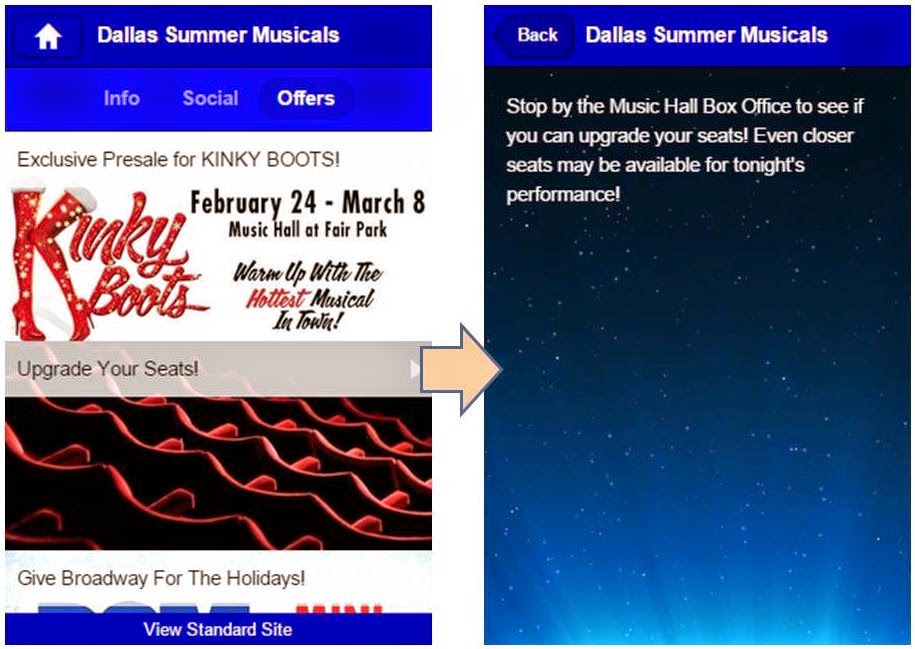
Dallas Summer Musicals: Pre-sale Tickets & Seat Upgrades


Indianapolis Chamber Orchestra: Turn your Ticket into a Subscription


CYSO: Music Download


Enter to Win!


Use the Offers area to promote competitions,  raffles, or other sweepstakes that audience members can enter by posting in the Social tab or filling out a form linked as a custom action in the Info tab.

The School of Theatre at Florida State University: Win Free Tickets


Friday, October 31, 2014

Tips for Promoting Your Mobile App, Part 1: Encouraging Downloads When Patrons Are Off-Site

One of the questions our partners frequently ask is, "How should we promote our app?"  To help you answer that question, we decided to provide you with some tips.  However, there is so much information that we had to break it into two separate posts.

We'll start with tips for how to promote your app when the patrons are not at one of your events.

8 Tips for promoting downloads when the audience is not at your event or performance


1.  Encourage mobile users who visit your website to download your app.  Makes sense right?  They are already on their mobile devices, so you should take the opportunity to direct them to your app.  Here are two ways you can do this:
Silk Road Rising uses the
mobile redirect script to
send mobile users visiting
their website to the mobile
web version of their app.

  • If you do not have a mobile responsive website or separate mobile site, be sure to use InstantEncore's mobile redirect script. (click here for how-to video)
    • This will redirect mobile users from your standard website to the mobile web version of your app.
    • It will also detect if the mobile user is on an Apple or Android device and present them with a prompt at the top of the screen to download your app on their device.
  • If you do have a mobile responsive site or separate mobile site, feature a notice for your mobile app on the home screen.
    • Provide a short message highlighting what additional features they will have access to by downloading the app.
    • Add the icon for your app to the screen.
    • Link the icon to your app's Smart App Download URL.
    • Instruct the user to tap on the icon to download the app.

2.  Encourage desktop/laptop users who visit your website to download your app.  This one might not be as obvious as the first one.  With the rapid rise of smartphone and tablet users, the probability is strong that people who visit your website on their desktop and laptop computers are also mobile users.  So why not encourage them to download your app? Here are two suggestions:
  • Add mobile app download buttons to your home screen.  
  • Austin Symphony Orchestra uses buttons on their website to
    encourage visitors to download their mobile app.
    • Add a button for both your Apple mobile app and your Android app.
    • Buttons for:  Android  |  Apple
    • Link the button to its appropriate URL.
    • To find the web link for each of your apps:
      • Go to www.instantencore.com
      • At the top where it says "Search or Redeem," enter the name for you or your organization.
      • "Search or Redeem" field on the InstantEncore site.
      • Find and click on your account name to go to your InstantEncore profile.
      • Clicking on the image for your mobile app gives you a drop-down menu with links to your Android and Apple URLs.
Links to Seattle Shakespeare Company's Android and Apple
apps in their InstantEncore profile.

3.  Create a video to spotlight your app.  While this may sound difficult, it really isn't.
  • Decide which features you want to mention and which ones you want to show in use.
  • Write out a script for the video.
  • Consider recruiting one of your artists to be video spokesperson for the app.
  • Practice going through the script while interacting with your device.  
  • Get a sense of how long it takes you to go through the script.  You should be able to highlight the more exciting features in a 1 to 2 minute video.
  • For example: here's an informative and funny video for the 2011 YouTube Symphony mobile app featuring flutist Nina Perlove:

  • At the end of your video, include the Smart App Download URL as the closing image.
  • Upload the video to YouTube - be sure to put the Smart App Download URL in the video's description.
  • Post it everywhere -- embed the video on your website or blog; share it on social media; link to it in email newsletters; etc.

4.  Feature the app prominently in your email communications.  
  • Spotlight your app in e-newsletters, subscriber emails, pre-show emails to ticket holders, etc.

    Email example from Curtis Institute of Music.
  • Be sure to mention your mobile app in confirmation emails for online ticket sales and/or reservations.
  • Include a brief description of your app's features as well as a link to the Smart App Download URL.

5.  Spotlight your app on the back of printed tickets and/or ticket envelopes.
  • Include the app logo and a brief description of the app's value.
  • Highlight the Smart App Download URL.
  • Add a QR Code linked to the Smart App Download URL. (click here for how-to video)

6.  Highlight your app on printed promotional pieces for your events and season.
  • Feature your mobile app and its features in your season brochure.
  • Mention your mobile app and its value in your event postcards, posters, and flyers.
  • Include the app logo, the Smart App Download URL, and/or QR Code.

7.  Alert your social media followers to your app.
  • On a regular basis, post screenshots from your app to highlight new content available in your app.
  • Include a link to the Smart App Download URL. 

8.  Use your App Store Description to highlight its features.  It's not enough to simply send patrons to your app's URL on iTunes or Google Play.  Once they are there, you need to communicate why they should download the app.


In Part 2 of this blog series, we will focus on tips for encouraging app downloads when your patrons are attending your event or performance.

Questions?  Contact us at support@instantencore.com. 

Thursday, October 16, 2014

Best Practices for Adding Images in Custom Tabs

As you customize your mobile app with unique content via custom tabs, adding images is a great way enhance the content so that your users have a more visually dynamic experience beyond reading a block of text.
An example from Silk Road Rising of how adding an image can enhance a custom tab.
Lets take a look at some best practices for embedding images effectively in custom tabs.

Where to Host Images

First, you need to decide where to host the images. There are a few options available to you.

Your Own Server: If you already have a dedicated server for your main website that you have easy access to, this would be a convenient place to host the images.

Third Party Server: Services like Photobucket and ImageShack offer reliable alternatives.

InstantEncore File Storage: However, we highly recommend hosting images directly on InstantEncore. Under the "Extras" menu in the Control Panel you will find a "File Storage" tool that gives you a quick and easy way to upload images you wish to embed.


Just select the desired file from your computer, provide a simple description and click "Upload".


We provide you with a convenient link to your image which you can copy and use to embed that image in your custom tab.


The major advantage of hosting your images directly on InstantEncore is that, if your website or third party server were to ever experience downtime, those image links would be broken in the App until that server came back online. Hosting your images in our File Storage area ensures that the images in your Custom Tabs will be visible whenever someone is using your App.

How to Embed Images

You can embed images in either the Design or HTML modes of the custom content editor.

Design Mode: The "Design" mode is the default mode when editing a custom tab, and a common way to make quick and easy edits to your custom content. Embedding an image is easy! First copy the URL of your image from our File Storage area (or from your own server or a third party service).

In the custom tab editor, click the icon in the toolbar that looks like a small picture.


Then paste the URL where it asks for the "Image Source". Click on "OK" and your Image will show up in the editor.


Some helpful tips for formatting images with this tool:
  • Depending on the background of your app, you may wish to set a Border Thickness of 2 to 3 pixels to provide some contrast between it and the embedded image.
  • Adding 5 to 10 pixels of Spacing keeps text from pressing right up against the image.
  • While you can set a specific width and height for your image here, with a mobile design in mind you may want to consider using HTML mode and CSS to achieve the most power and control over your custom content with percentage based sizing.

HTML Mode: Working in the "HTML" mode gives you much finer control over your custom content. To add an image in this mode, type <img src="IMAGE URL"> and paste the URL between the quotes.


Our example image is fairly large to accommodate larger screen sizes. This is important as we want to use large images that we can scale down, instead of small images that would look bad when scaled up. So in the preview it will look like this:


Using CSS to Fit Images

By itself, the image is very wide and goes beyond the viewing area of the app, causing the tab to do what we call "free-scrolling" where the user can scroll up, down, left, and right with their finger in order to see all of the content. You'll notice I've also added some sample text at this point to make this feel like a real custom tab.


For usability, in most cases we want to limit scrolling to just up and down, but as your app will be used on devices with different sized screens, we also want to make sure that this content will scale to those different sizes.

Lets explore what CSS can do for us and also take a look at another feature, the "Custom CSS" tool in the "Styles" area of the Mobile App Control Panel.


This tool lets you set custom styles that will be applied to the app. Because we don't want these styles to be applied to everything in the app, just our images, we first need to use a class selector when adding images to the custom tabs. This lets us set CSS for several images without having to type out the code over and over, which makes changes and updates effortless. If you want to have some images take on one style and other images take on a different style, just create a different class for each set.

The HTML for the images in the custom tabs will look something like:

<img class="custom_class" src="IMAGE URL">


And the CSS in the Custom CSS tool will look like:

img.custom_class {
CSS CODE;
}


The .custom_class can be any unique keyword you like and should reflect what the class is being used for. Examples might be .banner, .mapImage, .artist_photos, etc. Specifying img will make sure that other elements that might be assigned the same class aren't affected as well. This may not be needed in your case, but it is a good practice to observe.

height: In all cases, we want to set the height property to height: auto; to make sure that the image will scale with the width and preserve the aspect ratio of the image.

width: Setting the width property to 100% means that the image will take up 100% of the width of its container (not including other margins or padding that may be set by the app). This is good if you want an image to act as a banner that always stretches across the entire screen.

img.custom_class {
height: auto;
width: 100%;
}


One thing to be mindful of is that this can cause an image to scale beyond its original size and lead to reduced image quality, which is why I prefer to use the next option, max-width.

max-width: The max-width property will define the maximum width the image can be. When set as a percentage, this will cause it to scale with its container until it reaches the actual size of the image.

img.custom_class {
height: auto;
max-width: 100%;
}


You'll notice that in this example, the first image looks the same as before, however in the wider example, the image does not continue to grow with the app as it has reached its actual size. This makes the property useful for photos or other situations where strict formatting is not important, but you still want it to scale within reason and without sacrificing quality.

min-width: Very rarely will you want to use the min-width property, but there are occasions. If you find yourself in a position where you need to embed an image with small text or a map with detailed information, you may wish to prevent the image from becoming too small, but still have it scale at larger sizes.

The image will display at normal size unless the container becomes wider than the actual image size, in which case it will start to scale according to what percentage is set.

img.custom_class {
height: auto;
min-width: 100%;
}


Notice that I have included some "fine print" in our example image to help illustrate this point. While we want to avoid "free-scrolling" when possible, ensuring that text content in the image is readable is also a valid concern, and min-width can be used for these instances.


What Else Can We Do?

Play around with the percentages. Set the max-width at 80% instead of 100% to include more white space or a width of 50% to leave room for text next to the image. You might need some other CSS and HTML tools to help get the formatting just right though.

I've linked several times already to w3schools - an outstanding resource for HTML, CSS, and more. It lets you experiment directly on their website before bringing what you've learned into your mobile app.

If you have any questions or run into challenges, email us at support@instantencore.com.