Showing posts with label audience engagement. Show all posts

Monday, June 20, 2016

Partner Showcase - Seattle Shakespeare Company

When you think of Shakespeare, you probably don't think of mobile apps.  But Seattle Shakespeare Company does.  For the past two years, they have used their mobile app to connect contemporary audiences with the power and vibrancy of Shakespeare and other classical playwrights.

We recently spoke with Communications Director Jeff Fickes to find out what prompted Seattle Shakespeare Company to pursue their mobile engagement strategy.

Jeff Fickes
Why did you decide to offer a mobile app for your patrons?
When mobile apps first appeared in the marketplace, I knew that I wanted Seattle Shakespeare Company to have one. We had meetings did some research, and then saw that the development was going to be out of our reach since we’re a relatively small company.

But I kept dreaming. I had been doing a lot of reading about the direction of consumer trends and everything I read pointed me in the direction of optimizing for mobile usage. We redesigned our website to be mobile responsive and optimized our email campaigns to be read on mobile devices. I still kept thinking about a mobile app.

Click on image for a closer look.
We’re a theatre company that performs in three different indoor venues, 13 different outdoor venues, and has a tour that performs all over the state. We are a mobile theatre company. I wanted us to be easily accessed where ever our patrons are and to be able to communicate with them whether they’re in a theatre, seeing a park show, or a student seeing Shakespeare for the first time with one of our tours.

Why did you choose InstantEncore’s mobile app solution?
I actually stumbled upon InstantEncore. I was searching around in the App Store to see what other theatre companies were doing in terms of mobile apps, and saw that some of the larger theatre organizations across the country (Guthrie Theatre, Arena Stage, and Berkeley Rep) were using InstantEncore. I immediately requested a demo and got very excited about the prospect of making a long term goal happen.

InstantEncore offers a great deal of flexibility and allows you to tailor the app to your own needs. It worked with our ticketing system and the pricing was within our budget. I didn’t need a lot of convincing. We started devising a plan for how we wanted to use the app and got it set up within a week or so after signing up.

Seattle Shakespeare Company uses
their app's At-The-Venue feature
to engage audiences at performances.
Click on image for a closer look.
How have you promoted your mobile app to your patrons?
We’ve promoted the app through lobby signs, curtain speeches, our website, email notices and program ads. We’ll most likely do a small facebook digital ad campaign in conjunction with our upcoming outdoor shows this summer, as we’ve found it to be very useful for locating which park show is performing where - since the shows are in a different location practically each night.

What are the main benefits of your mobile app for your patrons?
Aside from being able to engage with patrons on a device that many people have a personal attachment to, I believe it’s worked well for us from a branding standpoint. We were one of the first theatre companies in Seattle to have a mobile app.

Just the fact that a theatre company of our size who focuses on classical plays has an app says something about the company. It sort of shakes off the perceived stodginess of classical plays and gives people a digital interaction in addition to the stage experience.

I believe that patrons start to experience the play well before they enter theatre. They’re conceiving of it in their mind through the advertising images and words written about it. If they’re engaging with the play (learning about it and the company) through a mobile device and can do it where ever they may be (on the bus, waiting in line at the store, at home on the couch) we become much more a part of their lives. The perception of the work on stage takes on a different relevance because we’ve engaged with them on their terms, on their time. The art can seem more relevant to a contemporary world because the engagement was digital.

SSC uses push notifications to
send contextually relevant messages
to patrons. Click on image for a
closer look.
Which feature do you like best? Why?
I love the At-The-Venue feature. I believe that if a patron feels informed about the show they’re about to see, that their experience of it is better. We include video welcome messages, things to know, directors notes, cast bios as well as special offers to entice them to buy in our shop or make a purchase of their next ticket.

We’ve also run some very unique sales promotions (including a one day $12 ticket promotion in honor of the Seahawks being in the Super Bowl) that utilized the push notifications and custom tabs.

What’s the feedback on the app been like from your patrons?
We’ve gotten good feedback and have seen the app consistently utilized, especially on show days. I think that adoption has been slow and most of the people regularly using are “super fans.”

What has customer support been like?
Customer support has been great. I like that the product continues to be developed with new features added.

Monday, May 30, 2016

Automatically Enhance the Audience Experience with At-The-Venue

Since 2014, InstantEncore's mobile suite has enabled performing arts organizations to enhance the audience experience with event-specific content released within their mobile app on the day of the performance.

Our new At-The-Venue (ATV) feature uses automation tools to make this easier than ever before. With At-The-Venue, you can automatically generate an ATV experience for every event in your calendar AND identify specific content to be included in every ATV experience.

ATV's automation tools help you to consistently enhance the audience experience for every event, amplify the relevancy of your app for patrons, and save staff time by reducing app management tasks

Sync ATV with Your Events


Prior to the release of At-The-Venue, app administrators needed to manually create experiences for events on their calendar. Now, you can synchronize the creation of ATV experiences with Events in your app.  And all it takes is the click of a button!

Click on image for a closer look
  • In your account, go to Mobile >> At-The-Venue
  • In the Checklist on the right, click on Sync with Events
  • Click on the Enable Sync button
Once you enable the sync, an ATV experience will be generated for each upcoming Event. The follow items will be automatically included in the experience:

Monday, May 9, 2016

10 Tips for Managing Geofences - Connecting When and Where It Counts

Geofences allow you to create location-based triggers around your venue. Think of it as putting a ring around your theater, concert hall, museum or other venue. When your patrons cross the geofence ring, they receive a customized message on their phone prompting them to open your mobile app.

Here are 10 tips for maximizing the effectiveness of your geofences:

Getting Started


Create one single Geofence.
1. Keep it Simple.
There will always be some give and take with determining a user’s location. Especially when considering all of the technologies and factors that go into it. As an example, avoid placing one Geofence around your venue, another around the parking lot next door, and a third one for the coffee shop across the street with which you have a partnership.

Even if a user parks in the lot and grabs a cup of coffee across the street before heading into the event, they might end up receiving the event notification first, then one for the coffee shop, and lastly for the parking lot at which point they’re already in your lobby.

TIP: Use one Geofence to surround everything and then supply parking and coffee shop information as part of the At-The-Venue (ATV) Experience content.

2. Encompass the Entire Venue. And a Little Bit More.
The size of your Geofence is important. The minimum diameter is 200 meters (or about 650 feet) which will cover most small to medium sized venues. Increase the size as needed to cover larger venues. But don’t make it too big as users who have the App might receive a message even though they are not attending the event.

TIP: First, adjust your Geofence so that the entire venue is inside of it. Then expand it to add some buffer room. An extra 50 to 100 meters wouldn’t be unreasonable.

3. Managing Multiple Venues.
A single venue is easy. Create your Geofence, set an Any Time or ATV message, and you’re done! But for our partners who present at different venues, Custom Messages are key.

TIP: You can use these to create time-specific messages at each Geofence for each event. This will help you avoid sending messages to people if they happen to arrive at a location when you don’t have an event going on there. You can also mix-and-match. Setup a main Geofence with an Any Time message and Geofences for special venues with only Custom Messages.

Monday, May 2, 2016

Introducing 4 New Features Now Available for Your Mobile App

InstantEncore is continually improving our mobile solutions platform so that we can deliver maximum benefit to arts organizations and their patrons.  This week, we're releasing four exciting, new features for your mobile app.

1. Automated At-The-Venue Experiences


Creating At-The-Venue Experiences (or ATVs) are a powerful way to connect with your patrons. Your ATV can prompt them to check-in on social media, deliver program information, showcase upcoming events, present them with promotional offers, and more.

And now, it's easier than ever to create an At-The-Venue Experience. Every time you add an event in your account, you automatically generate an ATV for that event, and schedule it to appear in your app on the day of the event.

Managing At-The-Venue content is easier, too.  If you have content that you'd like in all your ATVs, you can set it up once and have it automatically added to any Experiences you create.  You can also copy existing content from other ATVs in your account.

And of course, you retain the ability to add custom content to specific Experiences or create new ATVs from scratch at any time.

Monday, March 28, 2016

Partner Showcase: Dallas Summer Musicals

As the preeminent nonprofit presenter of Broadway theatre in North Texas, Dallas Summer Musicals (DSM) produces, presents and promotes excellence in live musical theatre with year-round performances for diverse audiences of all ages.  Since its launch in October 2014, the DSM mobile app has garnered nearly 7,000 downloads from patrons.

We recently talked with DSM's Amanda Farrow, Marketing & Social Media Coordinator, about their mobile app and how their patrons have responded to it.

Amanda Farrow
Why did you decide to offer a mobile app for your patrons?
We were looking for a way to engage our patrons while they're in the theater and give a more in-depth look at the touring shows we bring to the Music Hall. We also wanted an easy point of reference for our patrons to get more information about tickets and a behind-the-scenes look that our website didn’t offer. Additionally, we wanted to send instant alerts and the push notification feature was exactly what we needed.

Wednesday, December 2, 2015

Why Should I Download Your App? (and Other Questions to Guide Your App Promotion Strategy)

One of the questions that our partners often ask us is, "How do I get more people to download our app and use it?" Of course, the specific answer to this question varies from partner to partner based on how they promote and utilize their apps.

With a hat tip to the Socratic method, here are three questions you need to answer in order to advance your app promotion strategy.


1. Why should I download your app? 


Every patron expects an answer to this question before they download your app.  It is not enough to simply tell them that you have an app and instruct them to download it.
You need to give them a compelling reason.

Thursday, August 27, 2015

At-The-Event Resource Roundup

This is the future of mobile technology in the arts: creating an enhanced event experience for your audience.  At-The-Event gives you the tools for sharing event-specific content, increasing social activity, and encouraging ongoing attendance.

As we approach the start of the 2015-16 season, lets revisit At-The-Event:  what it is, how to set one up, and how to get people's eyes on it. 

Introduction:

At-The-Event Setup:

Promotion:

Spotlight from the Field:

Additional Resource:

Thursday, August 6, 2015

At The Event - Partner Spotlight: Pittsburgh Symphony Orchestra

Since 1896, the Pittsburgh Symphony Orchestra has been enriching the lives of audiences with world-class music.  Now at the start of their 120th season, PSO expands this tradition by utilizing their mobile app's At-The-Event feature to enhance the concert experience for the 21st Century.  Their audiences now have easy access to a variety of event-specific content, social interactions with artists and patrons, and special offers.

At-The-Event Recap


The At-The-Event Checklist highlights
available content items and provides
one-click access for easy editing.
When setting up At-The-Event,  it is important to provide as many content options as possible.  You don't want to advertise exclusive or event-specific content to your audience without providing them with an experience that lives up to its promise.

At-The-Event has three main content areas:

  • The Info screen contains features such as: 
    • Check in (This feature doesn't require any setup, it just works!)
    • Things to Know
    • Program Notes
    • Artist Bios
    • Custom actions - links to other content tabs or websites.  
  • The Social feed aggregates posts from Twitter or Instagram with a defined #hashtag and adds posts made using the In-App form.  
  • The Offers area lets you showcase specific deals, promotions, and partnerships to your patrons.


Now, lets take a look at how Pittsburgh Symphony Orchestra used each of these areas for their recent concert event - FUSE@PSO: Brahms + Radiohead.

Monday, July 13, 2015

Enhanced Push Notification Resource Roundup

Enhanced Push Notifications have been available in our Apps for about a month now and, as we prepare for the 2015-16 season, this is the perfect time to make sure your settings are updated and that you're ready with all the tools you need to make Enhanced Push Notifications a part of your successful marketing strategy.

Here is a list of tips, suggestions, and how-to videos that cover every detail of the upgraded push notification system:

Introduction and Overview:

Enhanced Push Note Setup:

Sending an Enhanced Push Note:

Monday, June 8, 2015

7 Tips for Customizing Your App's Welcome Screen

As we mentioned in a previous post, the Welcome Screen for your app is a great tool for encouraging new app users to stay connected via notifications.

To get you started with this tool, we have provided you with a default message:
Enhance your <app name> experience with personal notifications.
We will only send you relevant messages with insider info, special deals and pertinent updates.
We encourage you to adopt, edit, and add to it so that the message is unique to you and appeals specifically to your app users.

7 Tips for Customizing Your Welcome Screen's Message


1.  Thank your patrons for downloading your app.  Many patrons will visit your website on their mobile devices.  Those who download your mobile app are interested enough in your work that they want to give you a presence on the most personal of their devices.  It's always a good idea to thank them for that.

2.  Use special formatting to draw the user's eye to parts of the message you wish to emphasize.


3.  Affirm for your app subscriber's that your messages will meet their wants and needs.


4.  Let them know that they can customize their information and interests to tailor the notifications they will receive. It can also be reassuring to let them know that they can change their selections at any time.


5.  If you have specific types of notifications you will be sending out, let them know.  There are a few options listed in the default message, but feel free to include other types that apply to your app.


6.  Encourage them to help you give them the most relevant notifications by answering some questions.


7.  Add simple instructions for customizing notifications both now and later.

No matter how many adjustments you make to the Welcome Screen's message, be sure to:

  • Encourage app users to maintain a deep connection with you
  • Assure them that you will not spam them with irrelevant messages
  • Let them know that they can control which notifications they receive
Questions?  Contact us at support@instantencore.com. 

Tuesday, May 26, 2015

Push Notification Interest and Category Suggestions

Setting up your Interests and Categories is a crucial step in activating the power and flexibility of Enhanced Push Notifications. It is also important to have them setup before your App is published, so that when your users open it for the first time they are greeted with the personalized notification settings they are expecting.

Which do you think looks better?


Quick Tips

  • Interests are topics that an audience member should be able to opt in to as many as they wish.
  • Categories should only have one possible answer that an audience member can give such as their age range or location.
  • We recommend having 10 or fewer Interests and Categories total to avoid overwhelming users.
  • Use short Category labels so that the entire label can be seen.
  • Don't get TOO personal with your Category options, as many people value their privacy online.

If you haven't yet set them, here are some suggestions that might make filling these out a little easier.  Keep in mind that the goal is to not copy over ALL of these, but to pick and choose ones that would be relevant to your performances and to your audience.

Interests

Notifications:
General Information
News and Reviews
Concert Announcements
Music and Video Recordings
Deals and Offers
Behind-the-Scenes
Exclusive Content
Weather Alerts
Live Broadcast
Miscellaneous

Genres:
Classical
Opera
Early Music
New Music
Jazz
Blues
Rock
Pop
Country
Gospel
World
Musical Theatre
Broadway
Ballet
Dance
Theatre
Plays
Drama
Comedy
Family
Film

Formats:
Full Ensemble
A Cappella
Vocal
Instrumental
Chamber Music
Recitals
Fully Staged
Semi Staged
Dress Rehearsal

Series:
Main Season
Weekend Concerts
Matinee
Lunch Time Concerts
Summer Festival
Holiday
Special Events

Participate:
Educational
Online Classes
Workshops
Masterclasses
Lectures
Q&A
Auditions
Volunteer

Categories

Age (option 1)
  65 and over
  55 to 64
  45 to 54
  35 to 44
  25 to 34
  15 to 24
  14 and under

Age (option 2)
  60 and over
  50 to 59
  40 to 49
  30 to 39
  20 to 29
  19 and under

Birth Month
  January
  February
  March
  April
  May
  June
  July
  August
  September
  October
  November
  December

Location (local ensemble/performer)
  Home City
  State/Province (outside City)
  Country (outside State/Province)
  World (outside Country)

Location (touring ensemble/performer)
  North America
  South America
  Europe
  Asia
  Africa
  Australia

Patronage
  Season Ticket Holder
  General
  Senior
  Student
  New Patron

Favorite
  Bach
  Beethoven
  Mozart
  Schubert
  Debussy
  Stravinsky
  Brahms
  Verdi
  Wagner
  Bartok
  Other

Monday, May 18, 2015

A Better Way to Encourage Opt-Ins for App Notifications

In the previous post, we talked about the benefits of using push notifications to communicate with your patrons.

The challenge with push notifications is persuading people to opt-in for them. Many people opt-out of receiving an app's notifications because they think they'll be bombarded with an endless series of sales pitches. But, what if you could alleviate their fears and empower them to choose the types of messages they want to receive?

InstantEncore's new enhancements to our mobile service allow you to do just that. Let's take a look at what's changing and how you can leverage those changes to strengthen your connection with mobile patrons.

What's Changing?


For most apps available on the market today:

  • Android users are automatically subscribed to notifications.
  • Apple users are presented with a notification opt-in screen immediately upon opening the app for the first time. 
For Android users, receiving the first notification can be disruptive. Why am I getting this message? When did I give them permission to send me this?  This disruption can trigger an Android user's fear of spam and prompt them to manually turn off notifications.

For Apple users, receiving the required opt-in screen immediately upon opening the app for the first time is like asking someone for a second date before you've gone on the first one.  Since Apple uses the same default opt-in screen, it comes off as generic and can predispose a user to tap "Don't Allow" out of habit.

So, how can we change this process to be less disruptive, less presumptuous, and more unique to the app experience?

With this month's update, your app's notifications opt-in process will feature three new elements designed to alleviate users' fear of spam, help you get the right message to the right patrons, and increase the likelihood that a user will elect to receive your notifications.

Welcome Screen


When someone opens your app for the first time, they will see your Loading screen followed by a Welcome screen.


The purpose of the Welcome screen is to prompt the user to stay connected with you, communicate the value of your notifications, and reassure them that you will not spam them with irrelevant messages.

We have prepopulated your Welcome screen with default text, but we encourage you to edit the text so that it is more specific to your app and the types of messages you will send to patrons.

Information Categories


When a patron taps on "Next" at the bottom of the Welcome screen, they are taken to an area where they can enter personal information and indicate their messaging interests.


You create the information categories and their possible answers. App users are intuitively prompted to select the answer which best applies to them.

When you create your categories, focus on information that will help you target the most relevant patrons and provide them with content they value.

We recommend limiting yourself to two or three categories, so that you don't overwhelm the user.

In the example above, we created the category Patronage. How might we use this category to send targeted messages?  Here are a few possibilities:

  • Send special messages with behind-the-scenes content as a season subscription benefit.
  • Create a subscription campaign focused on app users who frequently attend events but are not subscribers.
  • Invite occasional attendees to return with targeted ticket specials.

Remember, app users are prompted to select the answer which best applies to them. So generate your list of possible answers with that in mind.

Interests


In addition to providing personal information, app users can also select the interest areas for which they want to receive notifications.

When generating your list of interest areas, focus on the types of messages you will send. Here are some possibilities:

  • Behind-the-scenes
  • Artistic genres or disciplines
  • Specific performance series
  • Educational offerings
  • Ticket specials
  • Volunteering


By default, app users are selected to receive notifications from all interest categories. They can deselect any categories which do not interest them.

Again, consider limiting yourself to a handful of interest areas so as not to overwhelm users.

Then, what?


Once the app user has provided some personal information and indicated their messaging interests, they tap on "Get Started" at the bottom of the screen.

Android users will immediately begin using the app.  By providing them with the opportunity to opt-in and adjust their message preferences, your Android subscribers will no longer find notifications to be disruptive and unsolicited.

Apple users will now be presented with the required opt-in screen. By waiting until this point in the process to present the required screen, Apple users are more invested in staying connected and more likely to opt-in for notifications.

Thursday, January 22, 2015

Using Your App's Offers Tab to Drive Revenue, Encourage Participation, and More

At-The-Event's Offers tab is a powerful tool help drive revenue in creative ways.  From discounts to merchandise to upgrades, the Offers tab can present deals to your audience which are specifically relevant to that day's event.

Lets look at a few general categories of Offers:

Discounts


Discounts are perhaps the most straight forward Offer you can provide.  These include a percentage-based or fixed amount reduction on ticket sales, gift shop merchandise, concession items, etc.  You might even explore partnering with a local restaurant to provide discounts on meals to help drive customers to both businesses.

Alabama Dance Festival: 15% off Tickets


Detroit Symphony: 10% off Food & 10% off Gifts


Berkeley Rep: Free cookie with drink purchase


Pittsburgh Symphony Orchestra: Dinner and a Show


Merchandise


Let your audience know about new recordings, apparel, or other fun souvenirs that they can purchase.

Bach Collegium San Diego: New CD Release


SFJAZZ: 'A Love Supreme' 50th Anniversary Shirts


Activities


You can also use the Offers tab to make your audience aware of fun activities such as parties, receptions, or artist signings.

UMKC: Pre-concert reception


SFJAZZ: 'A Love Supreme: The Story of John Coltrane's Signature Album' Book signing


Special Access


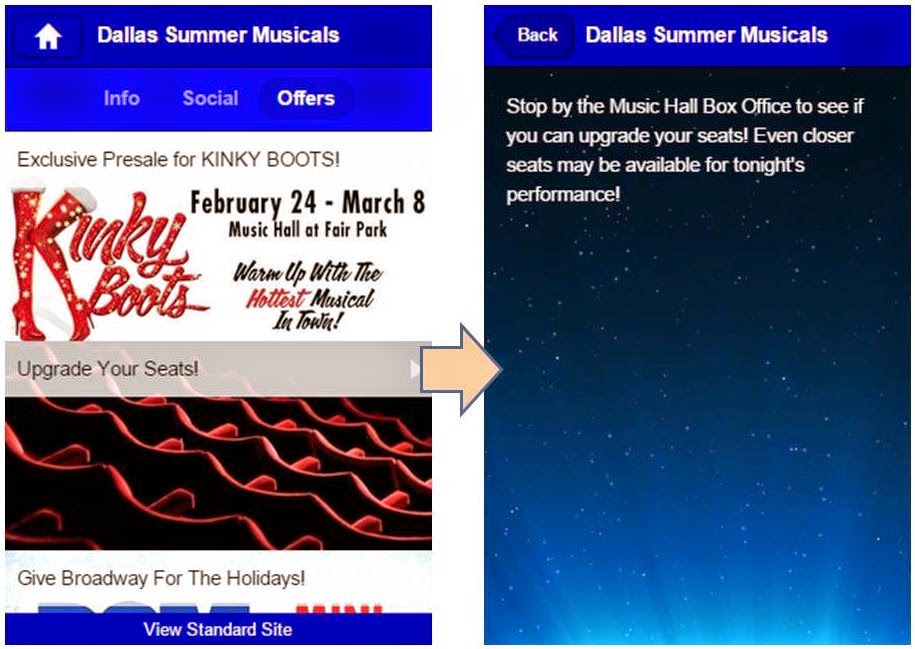
The Offers tab can be used in creative ways such as giving your audience access to special opportunities exclusively through the app.  Making tickets available for pre-sale, upgrading your seat, turning a single ticket into a season subscription, and music downloads are just a few of the endless possibilities.

Dallas Summer Musicals: Pre-sale Tickets & Seat Upgrades


Indianapolis Chamber Orchestra: Turn your Ticket into a Subscription


CYSO: Music Download


Enter to Win!


Use the Offers area to promote competitions,  raffles, or other sweepstakes that audience members can enter by posting in the Social tab or filling out a form linked as a custom action in the Info tab.

The School of Theatre at Florida State University: Win Free Tickets


Thursday, December 11, 2014

Encouraging Your App Subscribers to Get Social

The Social screen in your mobile app's At-The-Event module enables your app subscribers to post photos and text messages about the event and respond to each other's content.  The Social screen aggegates posts from the In-app form as well as posts to Instagram and Twitter featuring the event's hashtag.

To post to the Social screen, the app subscriber taps on the pencil icon and selects the platform they would like to use to share their content.

Example: The Social screen for Berkeley Repertory Theatre's production of Party People.
Simply providing the tool, however, does not mean that your app subscribers will use it.  So how can you encourage your audience to engage via social media when they are at your performance?

Put Your Patrons in the Picture 


Culture Track 2014 recently surveyed patrons to determine how they use their mobile devices while attending cultural events.  The most popular activities among respondents were taking photos (66%) and sharing photos (47%).  Some arts organizations are rightfully concerned about copyright issues and the potential for disrupting a performance.  So, here are some ideas for encouraging photo taking and sharing while simultaneously protecting copyright and the integrity of the live performance.
  • Selfie Campaigns - "Selfies" are photographs that mobile users take of themselves and their friends using their smartphones or tablets. Selfie campaigns have emerged among arts organizations as a way to galvanize social media participation among audiences.  Selfie campaigns encourage patrons to take photos of themselves and their friends at your event and post it to social media with a corresponding hashtag.
    • Both Twitter and Instagram allow mobile users to post pictures from their devices, which makes it easy for your app subscribers to post photos to the Social screen.
    • Promote the selfie campaign on-site with signage in public spaces and a mention in your printed program  
    • Promote the selfie campaign within the app by (1) using the Spotlight Text area on the Info screen, (2) including it as one of the items in Things to Know (see the example below), and/or (3) linking from the Info screen to a custom tab describing the campaign.
    • Consider incentivizing selfie campaigns by offering participants a chance to win a backstage tour, a chance to meet the artists, tickets to upcoming shows, etc.
Detroit Symphony Orchestra incentivized participation in their selfie campaign by offering
participants the chance to win a VIP table for 4 at an upcoming event.
  • Selfie Stations - Take your selfie campaign to the next level by setting up "selfie stations" where patrons are encouraged to take pictures of themselves and their friends with artists, background images, or props featured in the event.

    Example: For their production of A Christmas Story, The Musical, Dallas Summer Musicals created a selfie station with a cardboard cut-out of the character Ralphie and the show's iconic leg-shaped lamp.  The station also featured a background with DSM's logo.
Audience members took pictures with a cardboard cut-out of the main character and an iconic
prop at the Dallas Summer Musical's production of A Christmas Story, The Musical.
  • Volunteer Selfie Takers - Sometimes, it's difficult to get a great photo when you have to hold the camera yourself.  Help your patrons get the best possible photo at your event by providing volunteer selfie takers.  
    • They are responsible for offering to take pictures of patrons using the audience member's mobile device and encouraging patrons to post their photos to Twitter or Instagram with the events hashtag.
    • Position volunteers at selfie stations, near iconic artwork in the venue, or roaming throughout public areas before the performance, during intermission, and after the show.
    • Provide volunteers with buttons, T-shirts, hats, or some other item clearly marking them as a "Volunteer Selfie Taker."
    • By using a term like "selfie taker" or "photo taker," you reduce any expection  for the volunteers to be professional photographers.

Let the Audience Guide the Conversation


  • Invite Questions - For most live performances, the audience does not have an opportunity to directly engage with the artists.  The Social screen can serve to facilitate conversation between artists and your patrons by inviting app subscribers to submit questions for artists to answer. 
    • The questions may be answered directly by the artist within the app or during a live post-performance Q&A session.
    • Use signage in public spaces and a mention in the printed program to invite patrons to download your app and submit their questions.
    • Within the app, use the Spotlight Text area on the Info screen or an item in Things to Know to invite your app subscribers to submit their questions.
Austin Symphony Orchestra displays slides on digital screens in the lobby to invite patrons
to download the ASO app to chat with Maestro Bay and musicians.

A second slide provides instructions for downloading the app and using the Social screen.

During intermission, Maestro Bay answers questions directly within the ASO app.

  • Tweet Seats - In recent years, many performing arts organizations have experimented with "tweat seats" - a section of the audience (usually the back row or upper balcony) where audience members are encouraged to converse with one another during the performance via social media.  The Social screen is a great tool for facilitating this form of interactive engagement.
    • Some organizations set aside tweet seats for each performance. Others restrict tweet seats to specific performances.  
    • Still other organizations like Opera Omaha offer tweet seats to the final dress rehearsal for a production.
    • If you are interested in trying tweet seats at your events, the Arts Management & Technology Lab published an article earlier this year highlighting lessons learned from their experiment with Carnegie Mellon University's School of Music.

Give Them a Chance to Win


  • Incentives - One tactic for spurring more participation in the Social area of your app is to include an incentive for patrons.  With an incentive, the patron becomes eligible for a reward by simply engaging in the desired behavior. 
    • For example: In exchange for sharing a selfie or submitting a question, participants become eligible to win two tickets to an upcoming show.  
    • Tickets are one possible incentive, but not the only viable one.  You could offer a chance to win a backstage tour, a free drink from the concession stand, , etc. Get creative!
    • Reward recipients are often chosen by pulling participant names from a hat or a similarly randomized process.
    • Another variation is to provide the reward to all participants.  For example: Everyone who submits questions to the event's hashtag is invited to a reception with the artist after the post-performance Q&A session.

  • Contests - Take things up a notch by including a contest in the Social area.  Contests differ from incentives in that they include a competitive element.  Contests may be formal or informal in structure.  
    • An informal contest has a subjective judging process.  For example: Audience members stop by the selfie station in the lobby before the performance and during intermission to take pictures of themselves with a violin.  Guest artist Joshua Bell selects his favorite selfie at the end of the night, and the winner receives dinner for two from a local partner restaurant.
    • A formal contest has more objective criteria for determining a winner.  For example: Patrons are invited to download the app and take part in a trivia contest during intermission. A staff member posts a series of trivia questions on the Social screen. For each question, the first app user to post the correct answer wins an invitation to a backstage tour after the show.

Monday, November 24, 2014

Tips for Promoting Your Mobile App, Part 2: Encouraging Downloads When Patrons Attend Events

In part 1 of this blog series, we shared some tips for encouraging your patrons to download your mobile app when they are not at a performance.  So what can you do to encourage your audience to download your app when they are attending one of your performances?

Curtis Institute of Music displays
this six-foot retractable banner
in the lobby at performances.
 

6 Tips for promoting downloads when the audience is at your event or performance


1. Spotlight your app on the back of tickets or ticket envelopes to be picked up on-site.
  • Include the app logo and a brief description of the app's value.
  • Highlight the Smart App Download URL.
  • Add a QR Code linked to the Smart App Download URL.
    [How-to video]
2. Display signs and/or banners strategically throughout the venue.
  • Include screenshots from the app, the logo, and a brief description of the app's value.
  • Highlight the Smart App Download URL.
  • Add a QR Code linked to the Smart App Download URL.
  • Consider placing signs in areas where patrons are more likely to congregate: seating areas in the lobby, concessions, coat check, merchandise table, etc.
  • If you will need to move the signage regularly, retractable banners are a portable, self-contained option.   
3. Pass out promotional cards to attendees in the lobby.  
  • Choose a strong screenshot for the front of the card.  
    • If you are promoting the overall value of the app, then highlighting the home screen may work well.
    • If you are promoting the special content available in the app for performances, then you may want to print small batches of cards.  With each new batch, the front of the card can be changed to the landing screen for that performance's At The Event content.
  • On the back of the card, emphasize the value of the app for patrons attending your event and provide instructions for downloading.
    • Include the Smart App Download URL.
    • Add a QR Code linked to the Smart App Download URL.
  • Encourage the card holder to opt-in for your push notifications by emphasizing how they will benefit from receiving those messages.
    • Partners who communicate the type of content they send via push notifications prior to the app download see a higher opt-in rate than those who do not.
Kennesaw State University's School of Music hands out
promotional cardsfor their mobile app.

4. Present slides on digital screens in the lobby or projected in the performance hall.
  • Include a screenshot or the app logo, as well as a description of how they will benefit from downloading the app.
  • Highlight instructions for downloading the app and/or provide the Smart App Download URL.
  • Since these are usually timed slides, there is no need to include a QR code.
The Ford Center for the Performing Arts projects slides on the overhead
screen in the performance hall to prompt app downloads.

5. Highlight your mobile app with an ad or an insert in your printed program.
  • If you are using a full-page ad or insert, include a compelling screenshot from the app.  If you are going with a smaller ad or insert, use the app logo.
  • Include a brief description of the app's value.
  • Feature the Smart App Download URL.
  • Add a QR code linked to the Smart App Download URL.
Austin Symphony Orchestra advertises their mobile app and its performance-specific
content with a full-page ad in their printed programs.

6. Mention your mobile app in stage announcements.
  • You can do this while simultaneously asking the audience to turn off their mobile devices.
  • For example:  "We hope that you used our mobile app to access the special content available for tonight's show.  If you have not, see page 5 in the program for information on how to download the app during intermission.  At this time, however, we ask that you turn off all mobile devices or set them to silent mode."
  • Don't be afraid to guide the audience's behavior toward acceptable mobile etiquette in your venue.

Thursday, July 10, 2014

Take Your App to the Next Level with "At The Event"

InstantEncore is excited to introduce the next stage in performing arts mobile engagement with "At The Event" - a new feature set for our mobile suite designed to deepen audience engagement and foster community among your patrons before, during, and after the show.


How does it work?

When “At The Event” is activated for an event, a full-image landing page becomes the home screen for your Apple and Android apps on the day of the show.  You control the start and end times during the day for this landing page to appear within the app. When your patrons tap on the landing page, they are taken to special content related to the event.


INFO

The Info screen enables you to engage your patrons more deeply with content specific to the event and the artists involved. Standard features include: location-based check-in, things to know, program notes, featured artist bios, and sponsor information. You also have the ability to create custom content just for that performance, connect to multimedia content already in your app, and link out to external URLs.


SOCIAL

The Social screen highlights the social media hashtag for your event, aggregates posts with that hashtag from Twitter and Instagram, and allows your patrons to respond with their own posts. If a mobile user does not have an account on Twitter or Instagram, they can use the in-app posting form to engage in the conversation.


(Why not Facebook?  Because most Facebook users have their privacy settings limited to friends and family.  In order for an app to pull in hashtag content, it must be publicly posted.  We did not want Facebook users to become frustrated by submitting a post that did not appear in the social feed due to privacy settings.)

OFFERS

The Offers screen helps you to capitalize on your audience’s attendance by promoting upcoming events, season subscriptions, concession specials, merchandise, offers from external partners, and more.


At The Event Resources

Over the upcoming weeks, we will be releasing a series of posts on this blog to highlight tips and best practices for making the most of this exciting new tool for audience engagement.  In the meantime, here are some resources to help you dive deeper into exploring what you could do with At The Event in your mobile app.