Showing posts with label mobile engagement. Show all posts

Monday, June 20, 2016

Partner Showcase - Seattle Shakespeare Company

When you think of Shakespeare, you probably don't think of mobile apps.  But Seattle Shakespeare Company does.  For the past two years, they have used their mobile app to connect contemporary audiences with the power and vibrancy of Shakespeare and other classical playwrights.

We recently spoke with Communications Director Jeff Fickes to find out what prompted Seattle Shakespeare Company to pursue their mobile engagement strategy.

Jeff Fickes
Why did you decide to offer a mobile app for your patrons?
When mobile apps first appeared in the marketplace, I knew that I wanted Seattle Shakespeare Company to have one. We had meetings did some research, and then saw that the development was going to be out of our reach since we’re a relatively small company.

But I kept dreaming. I had been doing a lot of reading about the direction of consumer trends and everything I read pointed me in the direction of optimizing for mobile usage. We redesigned our website to be mobile responsive and optimized our email campaigns to be read on mobile devices. I still kept thinking about a mobile app.

Click on image for a closer look.
We’re a theatre company that performs in three different indoor venues, 13 different outdoor venues, and has a tour that performs all over the state. We are a mobile theatre company. I wanted us to be easily accessed where ever our patrons are and to be able to communicate with them whether they’re in a theatre, seeing a park show, or a student seeing Shakespeare for the first time with one of our tours.

Why did you choose InstantEncore’s mobile app solution?
I actually stumbled upon InstantEncore. I was searching around in the App Store to see what other theatre companies were doing in terms of mobile apps, and saw that some of the larger theatre organizations across the country (Guthrie Theatre, Arena Stage, and Berkeley Rep) were using InstantEncore. I immediately requested a demo and got very excited about the prospect of making a long term goal happen.

InstantEncore offers a great deal of flexibility and allows you to tailor the app to your own needs. It worked with our ticketing system and the pricing was within our budget. I didn’t need a lot of convincing. We started devising a plan for how we wanted to use the app and got it set up within a week or so after signing up.

Seattle Shakespeare Company uses
their app's At-The-Venue feature
to engage audiences at performances.
Click on image for a closer look.
How have you promoted your mobile app to your patrons?
We’ve promoted the app through lobby signs, curtain speeches, our website, email notices and program ads. We’ll most likely do a small facebook digital ad campaign in conjunction with our upcoming outdoor shows this summer, as we’ve found it to be very useful for locating which park show is performing where - since the shows are in a different location practically each night.

What are the main benefits of your mobile app for your patrons?
Aside from being able to engage with patrons on a device that many people have a personal attachment to, I believe it’s worked well for us from a branding standpoint. We were one of the first theatre companies in Seattle to have a mobile app.

Just the fact that a theatre company of our size who focuses on classical plays has an app says something about the company. It sort of shakes off the perceived stodginess of classical plays and gives people a digital interaction in addition to the stage experience.

I believe that patrons start to experience the play well before they enter theatre. They’re conceiving of it in their mind through the advertising images and words written about it. If they’re engaging with the play (learning about it and the company) through a mobile device and can do it where ever they may be (on the bus, waiting in line at the store, at home on the couch) we become much more a part of their lives. The perception of the work on stage takes on a different relevance because we’ve engaged with them on their terms, on their time. The art can seem more relevant to a contemporary world because the engagement was digital.

SSC uses push notifications to
send contextually relevant messages
to patrons. Click on image for a
closer look.
Which feature do you like best? Why?
I love the At-The-Venue feature. I believe that if a patron feels informed about the show they’re about to see, that their experience of it is better. We include video welcome messages, things to know, directors notes, cast bios as well as special offers to entice them to buy in our shop or make a purchase of their next ticket.

We’ve also run some very unique sales promotions (including a one day $12 ticket promotion in honor of the Seahawks being in the Super Bowl) that utilized the push notifications and custom tabs.

What’s the feedback on the app been like from your patrons?
We’ve gotten good feedback and have seen the app consistently utilized, especially on show days. I think that adoption has been slow and most of the people regularly using are “super fans.”

What has customer support been like?
Customer support has been great. I like that the product continues to be developed with new features added.

Monday, May 30, 2016

Automatically Enhance the Audience Experience with At-The-Venue

Since 2014, InstantEncore's mobile suite has enabled performing arts organizations to enhance the audience experience with event-specific content released within their mobile app on the day of the performance.

Our new At-The-Venue (ATV) feature uses automation tools to make this easier than ever before. With At-The-Venue, you can automatically generate an ATV experience for every event in your calendar AND identify specific content to be included in every ATV experience.

ATV's automation tools help you to consistently enhance the audience experience for every event, amplify the relevancy of your app for patrons, and save staff time by reducing app management tasks

Sync ATV with Your Events


Prior to the release of At-The-Venue, app administrators needed to manually create experiences for events on their calendar. Now, you can synchronize the creation of ATV experiences with Events in your app.  And all it takes is the click of a button!

Click on image for a closer look
  • In your account, go to Mobile >> At-The-Venue
  • In the Checklist on the right, click on Sync with Events
  • Click on the Enable Sync button
Once you enable the sync, an ATV experience will be generated for each upcoming Event. The follow items will be automatically included in the experience:

Tuesday, October 20, 2015

Estimating Your App's ROI - Introducing "Tap Event" Tracking in Google Analytics

Over the summer, we enabled a feature in Google Analytics for your mobile app called "Events." This feature gives you the ability to track when a user taps certain buttons.  Tapping these particular buttons does not result in a new screen view within the app.  Instead, they lead to an external action.

Note: To clarify, these are NOT events like concerts, shows, or other performances.  They're user behaviors taking place within your app. To avoid confusion, we will refer to these behavioral instances as "Tap Events."

We track the following Tap Events from your app's event listings:
  • Get Tickets: When the user taps on the "Get Tickets Online" button to open an external ticket purchasing site.
      
  • Phone: When the "Call Box Office" button is tapped to automatically dial the number.
      
  • Map: When the venue address button is tapped to display the location of the venue on a map and get directions.
      
  • Program Notes: When the "View Program Notes" button is tapped displaying a PDF of the program (this button only displays if a PDF has been uploaded within the event's details).

Thursday, August 27, 2015

At-The-Event Resource Roundup

This is the future of mobile technology in the arts: creating an enhanced event experience for your audience.  At-The-Event gives you the tools for sharing event-specific content, increasing social activity, and encouraging ongoing attendance.

As we approach the start of the 2015-16 season, lets revisit At-The-Event:  what it is, how to set one up, and how to get people's eyes on it. 

Introduction:

At-The-Event Setup:

Promotion:

Spotlight from the Field:

Additional Resource:

Thursday, August 6, 2015

At The Event - Partner Spotlight: Pittsburgh Symphony Orchestra

Since 1896, the Pittsburgh Symphony Orchestra has been enriching the lives of audiences with world-class music.  Now at the start of their 120th season, PSO expands this tradition by utilizing their mobile app's At-The-Event feature to enhance the concert experience for the 21st Century.  Their audiences now have easy access to a variety of event-specific content, social interactions with artists and patrons, and special offers.

At-The-Event Recap


The At-The-Event Checklist highlights
available content items and provides
one-click access for easy editing.
When setting up At-The-Event,  it is important to provide as many content options as possible.  You don't want to advertise exclusive or event-specific content to your audience without providing them with an experience that lives up to its promise.

At-The-Event has three main content areas:

  • The Info screen contains features such as: 
    • Check in (This feature doesn't require any setup, it just works!)
    • Things to Know
    • Program Notes
    • Artist Bios
    • Custom actions - links to other content tabs or websites.  
  • The Social feed aggregates posts from Twitter or Instagram with a defined #hashtag and adds posts made using the In-App form.  
  • The Offers area lets you showcase specific deals, promotions, and partnerships to your patrons.


Now, lets take a look at how Pittsburgh Symphony Orchestra used each of these areas for their recent concert event - FUSE@PSO: Brahms + Radiohead.

Tuesday, May 26, 2015

Push Notification Interest and Category Suggestions

Setting up your Interests and Categories is a crucial step in activating the power and flexibility of Enhanced Push Notifications. It is also important to have them setup before your App is published, so that when your users open it for the first time they are greeted with the personalized notification settings they are expecting.

Which do you think looks better?


Quick Tips

  • Interests are topics that an audience member should be able to opt in to as many as they wish.
  • Categories should only have one possible answer that an audience member can give such as their age range or location.
  • We recommend having 10 or fewer Interests and Categories total to avoid overwhelming users.
  • Use short Category labels so that the entire label can be seen.
  • Don't get TOO personal with your Category options, as many people value their privacy online.

If you haven't yet set them, here are some suggestions that might make filling these out a little easier.  Keep in mind that the goal is to not copy over ALL of these, but to pick and choose ones that would be relevant to your performances and to your audience.

Interests

Notifications:
General Information
News and Reviews
Concert Announcements
Music and Video Recordings
Deals and Offers
Behind-the-Scenes
Exclusive Content
Weather Alerts
Live Broadcast
Miscellaneous

Genres:
Classical
Opera
Early Music
New Music
Jazz
Blues
Rock
Pop
Country
Gospel
World
Musical Theatre
Broadway
Ballet
Dance
Theatre
Plays
Drama
Comedy
Family
Film

Formats:
Full Ensemble
A Cappella
Vocal
Instrumental
Chamber Music
Recitals
Fully Staged
Semi Staged
Dress Rehearsal

Series:
Main Season
Weekend Concerts
Matinee
Lunch Time Concerts
Summer Festival
Holiday
Special Events

Participate:
Educational
Online Classes
Workshops
Masterclasses
Lectures
Q&A
Auditions
Volunteer

Categories

Age (option 1)
  65 and over
  55 to 64
  45 to 54
  35 to 44
  25 to 34
  15 to 24
  14 and under

Age (option 2)
  60 and over
  50 to 59
  40 to 49
  30 to 39
  20 to 29
  19 and under

Birth Month
  January
  February
  March
  April
  May
  June
  July
  August
  September
  October
  November
  December

Location (local ensemble/performer)
  Home City
  State/Province (outside City)
  Country (outside State/Province)
  World (outside Country)

Location (touring ensemble/performer)
  North America
  South America
  Europe
  Asia
  Africa
  Australia

Patronage
  Season Ticket Holder
  General
  Senior
  Student
  New Patron

Favorite
  Bach
  Beethoven
  Mozart
  Schubert
  Debussy
  Stravinsky
  Brahms
  Verdi
  Wagner
  Bartok
  Other

Friday, May 15, 2015

Why Should You Use Push Notifications?

Mobile is personal. It’s a 24/7 connection to your patrons that places your content and messaging within arm’s reach anytime, anywhere.

Correspondingly, downloading your mobile app onto my smartphone is a personal act. I am investing in a relationship with you.

Maybe I went to your website on my phone to buy a ticket, and it prompted me to download your app. Maybe I attended a performance where you had special content available in your app. But once I have bought that ticket or attended that performance, then what?

What will keep us connected and encourage me to use your app again?

Push notifications are text messages linked to content and sent directly to your app subscribers. They're a powerful way to keep your patrons engaged, share timely information, and remind them of the compelling content at their fingertips.


When an app subscriber gives you permission to send them notifications, they expect you to do that. They also expect you to deliver value every time.

Push notifications are similar to broadcast emails and text messages in that the patron chooses to receive them. But how effective are they compared to email or texting?


In comparison to broadcast email:
  • Push notifications have a higher probability of reaching your patrons. Broadcast emails can get caught in spam filters or bounce back from servers and full inboxes. 
  • Because we keep our mobile devices within arm’s reach, we’re likely to receive a push note much faster than an email. 
  • Push notifications also have higher open rates and engagement than broadcast email 
When compared to text messages:
  • Push notifications are clearly associated with you – rather than a series of numbers. 
  • Because of this, mobile users are more likely to click through on a push note. 
Sending broadcast email often requires you to sign up for an account with a service provider like ConstantContact or MailChimp. The costs for those services are often determined by the number of messages you send. And with text messages, you end up paying a fee for each message sent.

Push notifications are already a part of your InstantEncore service. You can send as many messages as you like without incurring further expenses.

While push notifications have a lower opt-out rate than text messages, it’s not quite as strong on average as email.  In our next post, we'll discuss how InstantEncore's new opt-in screens help address this challenge by predisposing your app users to opt-in for notifications rather than opting-out.

Thursday, January 22, 2015

Using Your App's Offers Tab to Drive Revenue, Encourage Participation, and More

At-The-Event's Offers tab is a powerful tool help drive revenue in creative ways.  From discounts to merchandise to upgrades, the Offers tab can present deals to your audience which are specifically relevant to that day's event.

Lets look at a few general categories of Offers:

Discounts


Discounts are perhaps the most straight forward Offer you can provide.  These include a percentage-based or fixed amount reduction on ticket sales, gift shop merchandise, concession items, etc.  You might even explore partnering with a local restaurant to provide discounts on meals to help drive customers to both businesses.

Alabama Dance Festival: 15% off Tickets


Detroit Symphony: 10% off Food & 10% off Gifts


Berkeley Rep: Free cookie with drink purchase


Pittsburgh Symphony Orchestra: Dinner and a Show


Merchandise


Let your audience know about new recordings, apparel, or other fun souvenirs that they can purchase.

Bach Collegium San Diego: New CD Release


SFJAZZ: 'A Love Supreme' 50th Anniversary Shirts


Activities


You can also use the Offers tab to make your audience aware of fun activities such as parties, receptions, or artist signings.

UMKC: Pre-concert reception


SFJAZZ: 'A Love Supreme: The Story of John Coltrane's Signature Album' Book signing


Special Access


The Offers tab can be used in creative ways such as giving your audience access to special opportunities exclusively through the app.  Making tickets available for pre-sale, upgrading your seat, turning a single ticket into a season subscription, and music downloads are just a few of the endless possibilities.

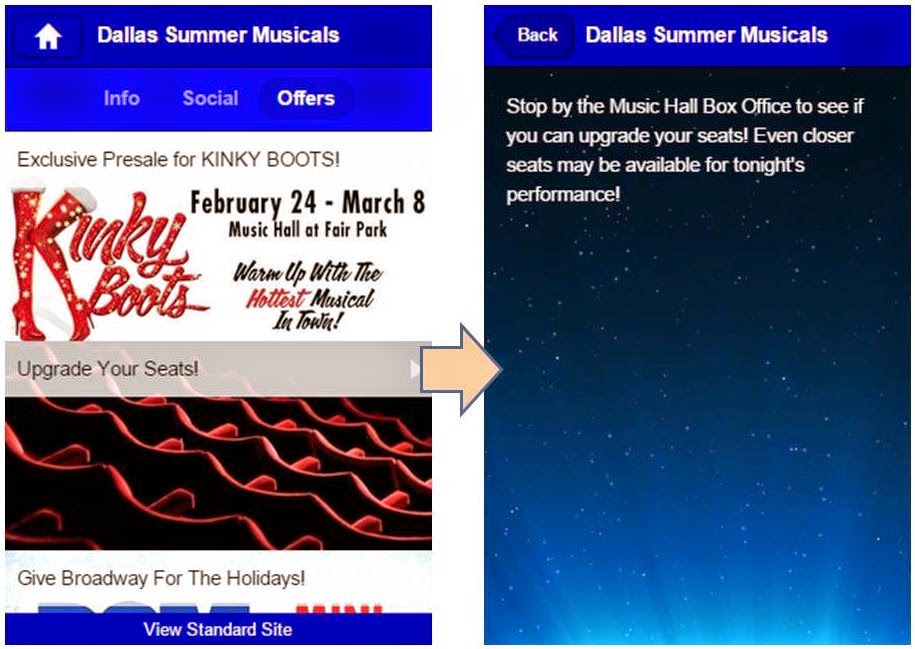
Dallas Summer Musicals: Pre-sale Tickets & Seat Upgrades


Indianapolis Chamber Orchestra: Turn your Ticket into a Subscription


CYSO: Music Download


Enter to Win!


Use the Offers area to promote competitions,  raffles, or other sweepstakes that audience members can enter by posting in the Social tab or filling out a form linked as a custom action in the Info tab.

The School of Theatre at Florida State University: Win Free Tickets


Monday, November 24, 2014

Tips for Promoting Your Mobile App, Part 2: Encouraging Downloads When Patrons Attend Events

In part 1 of this blog series, we shared some tips for encouraging your patrons to download your mobile app when they are not at a performance.  So what can you do to encourage your audience to download your app when they are attending one of your performances?

Curtis Institute of Music displays
this six-foot retractable banner
in the lobby at performances.
 

6 Tips for promoting downloads when the audience is at your event or performance


1. Spotlight your app on the back of tickets or ticket envelopes to be picked up on-site.
  • Include the app logo and a brief description of the app's value.
  • Highlight the Smart App Download URL.
  • Add a QR Code linked to the Smart App Download URL.
    [How-to video]
2. Display signs and/or banners strategically throughout the venue.
  • Include screenshots from the app, the logo, and a brief description of the app's value.
  • Highlight the Smart App Download URL.
  • Add a QR Code linked to the Smart App Download URL.
  • Consider placing signs in areas where patrons are more likely to congregate: seating areas in the lobby, concessions, coat check, merchandise table, etc.
  • If you will need to move the signage regularly, retractable banners are a portable, self-contained option.   
3. Pass out promotional cards to attendees in the lobby.  
  • Choose a strong screenshot for the front of the card.  
    • If you are promoting the overall value of the app, then highlighting the home screen may work well.
    • If you are promoting the special content available in the app for performances, then you may want to print small batches of cards.  With each new batch, the front of the card can be changed to the landing screen for that performance's At The Event content.
  • On the back of the card, emphasize the value of the app for patrons attending your event and provide instructions for downloading.
    • Include the Smart App Download URL.
    • Add a QR Code linked to the Smart App Download URL.
  • Encourage the card holder to opt-in for your push notifications by emphasizing how they will benefit from receiving those messages.
    • Partners who communicate the type of content they send via push notifications prior to the app download see a higher opt-in rate than those who do not.
Kennesaw State University's School of Music hands out
promotional cardsfor their mobile app.

4. Present slides on digital screens in the lobby or projected in the performance hall.
  • Include a screenshot or the app logo, as well as a description of how they will benefit from downloading the app.
  • Highlight instructions for downloading the app and/or provide the Smart App Download URL.
  • Since these are usually timed slides, there is no need to include a QR code.
The Ford Center for the Performing Arts projects slides on the overhead
screen in the performance hall to prompt app downloads.

5. Highlight your mobile app with an ad or an insert in your printed program.
  • If you are using a full-page ad or insert, include a compelling screenshot from the app.  If you are going with a smaller ad or insert, use the app logo.
  • Include a brief description of the app's value.
  • Feature the Smart App Download URL.
  • Add a QR code linked to the Smart App Download URL.
Austin Symphony Orchestra advertises their mobile app and its performance-specific
content with a full-page ad in their printed programs.

6. Mention your mobile app in stage announcements.
  • You can do this while simultaneously asking the audience to turn off their mobile devices.
  • For example:  "We hope that you used our mobile app to access the special content available for tonight's show.  If you have not, see page 5 in the program for information on how to download the app during intermission.  At this time, however, we ask that you turn off all mobile devices or set them to silent mode."
  • Don't be afraid to guide the audience's behavior toward acceptable mobile etiquette in your venue.

Thursday, July 10, 2014

Take Your App to the Next Level with "At The Event"

InstantEncore is excited to introduce the next stage in performing arts mobile engagement with "At The Event" - a new feature set for our mobile suite designed to deepen audience engagement and foster community among your patrons before, during, and after the show.


How does it work?

When “At The Event” is activated for an event, a full-image landing page becomes the home screen for your Apple and Android apps on the day of the show.  You control the start and end times during the day for this landing page to appear within the app. When your patrons tap on the landing page, they are taken to special content related to the event.


INFO

The Info screen enables you to engage your patrons more deeply with content specific to the event and the artists involved. Standard features include: location-based check-in, things to know, program notes, featured artist bios, and sponsor information. You also have the ability to create custom content just for that performance, connect to multimedia content already in your app, and link out to external URLs.


SOCIAL

The Social screen highlights the social media hashtag for your event, aggregates posts with that hashtag from Twitter and Instagram, and allows your patrons to respond with their own posts. If a mobile user does not have an account on Twitter or Instagram, they can use the in-app posting form to engage in the conversation.


(Why not Facebook?  Because most Facebook users have their privacy settings limited to friends and family.  In order for an app to pull in hashtag content, it must be publicly posted.  We did not want Facebook users to become frustrated by submitting a post that did not appear in the social feed due to privacy settings.)

OFFERS

The Offers screen helps you to capitalize on your audience’s attendance by promoting upcoming events, season subscriptions, concession specials, merchandise, offers from external partners, and more.


At The Event Resources

Over the upcoming weeks, we will be releasing a series of posts on this blog to highlight tips and best practices for making the most of this exciting new tool for audience engagement.  In the meantime, here are some resources to help you dive deeper into exploring what you could do with At The Event in your mobile app.

Wednesday, February 5, 2014

Make Your App Unique with Custom Tabs

Among the many features of InstantEncore's mobile service, the most malleable is the ability to create custom content areas (or "tabs") in your mobile app.  Custom tabs allow you to share a wide range of content and information with your mobile patrons.  For example:


How to Create Custom Tabs for Your App

To create a custom tab in your mobile app, you will need to log into your InstantEncore account and go to Mobile >> Tabs.  Scroll past the list of current tabs, and you will find the "Add a Custom Tab" area.


Here, you can set the name of your new tab by entering the text into the Label field.  The italicized "i" is the default icon associated with new tabs.  You may change this by selecting "Change Image."


You may select one of the icons from our library, or you may upload your own custom icon.  Generally speaking, we encourage you to upload white icons with transparent backgrounds - use .PNG image files. Icons should be uploaded at 72px X 72px.

Next, you need to decide if you will create the HTML content for the custom tab or if you will link to an existing web page.

Using the HTML Editor to Create Content for Your Tab
To create the content for your tab, select "Write HTML for the page," and click on "Create."  This will open a page with an HTML editor for creating and changing content.


The HTML editor has a look and features similar to word processing software or another web content management system.  You can format the text, add bullets or numeric lists, create indentions, add hyperlinks, insert images, create tables, and more.  

At the bottom of the editor, you will see two tabs for viewing  - Design and HTML.  The Design view shows the content as it will appear in the app, while the HTML view shows the programming code for the content. You may use either view when creating and editing content for your custom tab.
TIP: If you insert an image into a custom tab, you may wish to set the image's size in proportion to the size of the screen on which the tab is viewed.  Using a relational size will allow the image to adjust its size depending on if it is viewed on a smartphone, tablet, or mini-tablet. To set the image size, go to the HTML view.  Find <img src="http://www.website.com/image">, and add style="width: __%" before the > closure.
One of the many things you can do with the HTML view is to add <form> and <iframe> elements, as well as other advanced HTML elements.  If you do use advanced elements, you will need to toggle the "Use Advanced HTML mode for this tab" checkbox at the bottom of the screen.


Custom tabs in Advanced mode will open in a browser within the app instead of being directly embedded in the app. Basic HTML custom tabs will have the app's name and highlight color at the top, along with a "Back" button.  Advanced HTML custom tabs will open in a browser with the app's custom background image.  Mobile users simply tap on the "Close" button at the bottom of the Advanced tab to return to the app.

Basic and Advance HTML tabs from Austin Symphony Orchestra.
Click image for larger view
Using an Existing URL to Create Your Custom Tab
To create a custom tab linking to an external URL, select "Display an existing web page," enter the page's address, and click "Create." When your app's users tap the tab icon or label text in the menu, a browser will launch featuring the existing web page.  To return to the app, they simply tap on "Done" in the bottom toolbar.

TIP: If possible, link to a mobile-responsive or mobile-specific URL so that your app's users continue to have an experience that has been optimized for their mobile devices.

The Special Case for Donations and Membership Tabs

Apple prohibits any app hosted in the iTunes App Store from processing donations and memberships within the app - which includes opening a browser within the app.  So, there is a slightly different process for including these tabs in your app:
  1. Add a tab using the "Write HTML for the page" option.
  2. Enter your message to prospective donors or members.
  3. Add text or an image linked to an external URL where your mobile users can make their donations or sign-up for membership.
  4. Go into the HTML view.
  5. Find <a href="http://www.website.com/page">, and add target="_system" before the > closure.
This causes the page to open in a separate mobile browser window, instead of a child browser within the app.  The distinction is minor, but necessary to fulfill Apple's guidelines.

Wednesday, January 9, 2013

Mobile Engagement Consultations at APAP 2013

Mobile technology use has skyrocketed over the past few years. Audiences expect to be able to access your content, share it with their friends, purchase tickets and more - all from the palms of their hands. In addition to access, audiences also expect your content to be optimized for use on their smartphones and tablet computers.

Many performing arts presenters and touring artists do not believe that they have the resources to engage mobile audiences.  Not true.  You can engage with patrons on mobile devices even if you have NO budget and little time.

During the 2013 APAP Conference, InstantEncore's CMO David Dombrosky will be on hand to provide guidance on developing a mobile engagement strategy to match your goals and budget. One-on-one consultations may be scheduled on Saturday, Jan. 12 from 9am-5pm and Sunday, Jan. 13 from 9am-5pm. Email David at david@instantencore.com to schedule a consultation.

Thursday, October 25, 2012

A Gallery of Push Notifications

Earlier this year, we introduced the concept of push notifications - short text messages sent directly to your Apple and Android app subscribers.  Since then, a number of our partners have explored how to use push notifications in the service of different communication goals.  Check out these examples!


To view the most detail, expand the slide deck to full screen.

Thursday, July 5, 2012

Social Media and Your Mobile App, Pt 2 - Custom Tabs and a Centralizing Submenu

While syncing your social media feeds with the Buzz area of your mobile suite will centralize your dynamic content into a single area for your mobile audience, you also want to provide your fans with the ability to like your Facebook page, follow you on Twitter, etc.  The video below shows you two simple ways to add this feature to your app.


In the video, we talk about using the mobile-friendly URLs for your social media accounts. Here are the standard mobile-friendly formats for some of the more popular social networks:

  • Facebook -- http://m.facebook.com/YourFacebookPage 
  • Flickr --  http://m.flickr.com/#/photos/YourFlickrAccount
  • Google+ -- https://m.google.com/app/contacts/mp/220#:v=pc&g=-YourGooglePlusIDNumber
    • Find your Google+ ID number by going to your Google+ profile page. The number is located in the URL address between 0/ and /posts. For example: https://plus.google.com/u/0/117336246664676002690/posts
  • MySpace -- Unfortunately, you cannot take them directly to your mobile page.  They will need to go to http://m.myspace.com, then login and search for you.
  • Pinterest -- http://m.pinterest.com/YourPinterestAccount
  • Tumblr -- These blogs are already mobile optimized, so you can use your standard blog address.
  • Twitter -- http://mobile.twitter.com/YourTwitterAccount
  • YouTube -- http://m.youtube.com/user/YourYouTubeChannel

Wednesday, June 27, 2012

Social Media and Your Mobile App, Pt 1 - Feeding Content into Your Buzz

The Buzz area of the InstantEncore control panel provides dynamic content for your mobile app - in the What's New section of the home page as well as its own separate Buzz tab.  Many artists and arts organizations publish fresh content online through social media platforms and social networks.  So how can you bring this fresh content into your app's Buzz area?

The Buzz area automatically brings your content into the mobile suite by synchronizing with your content's RSS and Atom feeds.  The best way to automatically pull your social media and social networking content into your mobile app is to identify the RSS feed for your account and add it to the Buzz area.


Finding your content's RSS or Atom feed 

  • Blog or Podcast - Most blog and podcast platforms provide you with an RSS address so that your followers can subscribe to your content.  If you are not sure what your feed address is for your blog or podcast, conduct a search within the platform's FAQs or in its forum area.
  • Facebook - UPDATE: As of June 2015, Facebook no longer provides RSS or XML feeds for sharing content with web services. Click here for information on how to add Facebook content to your app.
  • Twitter - UPDATE: As of June 2013, Twitter no longer provides RSS or XML feeds for sharing content with web services.  Click here for information on how to add Twitter content to your app.
  • MySpace - MySpace provides you with the ability to grab the RSS feed for your MySpace blog.
    • On your profile page, click on "View All Blog Entries." 
    • In the top right-hand area of the next page, there are a few text links, one of them says "rss". 
    • Click on that link and the RSS feed address for your MySpace blog will appear in the web address bar.
  • Google+ - Here is the workaround for Google+.
    • Find your Google+ ID number by going to your Google+ profile page.  The number is located in the URL address between 0/ and /posts.  For example:
      https://plus.google.com/u/0/117336246664676002690/posts
    • Copy your ID number
    • Add it to the end of this sequence:
      http://plu.sr/feed.php?plusr=YourGoogle+IDHere
  • Tumblr - Tumblr definitely has the easiest RSS feeds to find.  Use http://YourTumblrBlog.tumblr.com/rss
  • Flickr - This one is pretty easy, too.  
    • Go to your Flickr photostream page and scroll to the bottom.
    • Where it says "Subscribe to YOUR photostream," click on the link next to it labeled "Latest"
    • The RSS feed address for your photostream will appear in the web address bar.
  • Pinterest - For Pinterest, the RSS feed will depend on whether you want the feed for your account or for a particular pinboard.
    • The RSS feed for your account will be http://pinterest.com/YourScreenName/feed.rss
    • The RSS feed for a particular pinboard will be http://pinterest.com/YourScreenName/YourBoardName.rss

Adding a feed to your Buzz

  1. Once you have located the feed for content, go the Buzz area of the control panel.
  2. Select Feeds in the submenu.
  3. Enter the RSS or Atom feed address in the empty text field.
  4. Select if the feed falls into the Blog, Podcast, or News category.
  5. Click on Add Feed.
  6. Once you have added your feed, be sure to click on Edit Image and upload a 75px X 75px graphic to  associate with the feed.  (We recommend PNG or GIF image files.)  Whenever content from the feed appears in your Buzz tab or on your Home tab, this graphic will appear in the list as a visual indicator of the source.
And you're done!  Now, you have dynamic content automatically feeding into the Buzz tab and the What's New area of the Home tab of your mobile app from your social media account.

Something to Consider 

Take a moment to think about your social media behavior.  If you frequently repost items from one social media source to another, then you may not want to add both feeds to your Buzz.  This would create redundant content entries.

So, if you automatically pull your Twitter posts into your Facebook wall posts, then perhaps you just want to select one of those social media accounts to feed into the Buzz area.

In our next post, we will look at two other ways of bringing your social media content into your mobile app.

Friday, June 1, 2012

Keep Your App Subscribers Engaged with Push Notifications

Adding new content to your app on a regular basis is a great way to keep your mobile audience engaged over time, but people have busy lives and may not always remember to check your app for updated events, videos, music, etc.  How can you keep your fans apprised of new additions to your mobile app?

Push It

Push notifications are short text messages sent directly to your Apple and Android subscribers on their mobile devices.  When downloads your app from either the Apple or Android marketplaces and launches the app on their mobile device, they are asked if they would like to receive these notifications from you.  By tapping "OK," subscribers have actively indicated that they would like to hear from you - so you should keep them updated and engaged!

Mobile devices are highly personal.  They are always with us and always turned on.  Therefore, it is important that you respect your fans' invitation to contact them by adhering to 2 golden rules:
  1. Keep it relevant.  While it may seem obvious, make sure that all of your push messages are relevant to your audience's primary interest - your work.  They want to know if you have new content in your app.  Are you streaming new music?  Did you add a series of video interviews with artists?  Do you have a special promotion for mobile users who purchase tickets for this weekend's performance?  Did you just announce next year's season?
  2. Keep it fresh.  Use your push notifications to alert your mobile audience to new content, events, promotions, etc.  Do NOT use push notifications to highlight content or events that have been in the app for awhile.  For example, continually sending messages reminding your fans to buy tickets for this event or that event is not a smart use of push notifications.  Now, if you have a special promotion for your app subscribers related to a particular event, then of course you should let them know.

Pushing Strategically

Here are a few things to consider as you develop your strategy for using push notifications:
  • You have 100 characters of text for your message
  • App subscribers will receive your message whether or not they are using your app at the time your message is sent
  • You may choose to have a sound associated with your push notification, so that there is an audio cue in addition to the visual alert
  • When a user taps on your push message, they are taken to your app's Home tab.  
  • TIP:  Use your Home tab's welcome message to highlight and connect to the content or event mentioned in your push notification.

How do you send push notifications?

  1. Login at InstantEncore.com 
  2. Open the Mobile submenu
  3. Select Push Notifications


  4. Enter up to 100 characters of text in the space provided
  5. Check the box if you would like a sound cue to accompany your message
  6. Click on the Push Message button to send your notification
Your apps subscribers have taken the initiative to download your app and give you permission to send messages to them.  Keep them informed, and keep them engaged.  

Tuesday, May 15, 2012

CIM to Stream Van Cliburn Commencement Address via Mobile App

On Saturday, May 19, the Cleveland Institute of Music (CIM) will live video stream its Commencement exercises at 10:00 a.m. (EDT) on www.cim.edu and on its mobile optimized website and smartphone apps powered by InstantEncore. The ceremony will feature iconic music figure, pianist Van Cliburn, as CIM presents him with an honorary doctorate. He will also give the Commencement Address to approximately 120 graduates.

The musical program includes tribute performances by critically acclaimed pianist Sergei Babayan as well as pre-recorded work by his protégé – the 2011 International Tchaikovsky Competition Grand Prix Winner, pianist Daniil Trifonov.

"Our new ability to present CIM on a variety of internet platforms, including the web and mobile devices, offers exciting opportunities for us and for our audiences," said Conservatory Dean Adrian Daly. "I'm delighted that CIM will be streaming this year's Commencement, allowing us to share the celebration of our newest graduates and of Van Cliburn with a wider audience."

Thursday, May 10, 2012

Connecting QR Codes to Tabs in Your Mobile App

QR codes are two-dimensional images that can be linked to online content. The image is scanned using a smartphone's camera, and the mobile user is taken directly to the content.

In this video, we walk through the process for connecting content from your InstantEncore mobile app with QR codes. The codes can be included in a variety of print publications: season brochures, postcards, posters, print ads, business cards, and more.


Expand the video to full screen for optimal viewing.

For tips on ways to use QR codes, check out these resources:

Tuesday, February 21, 2012

Engaging Mobile Audiences, Part II: Apps vs Websites

Palm Beach Opera engages mobile audiences with an iPhone app,
an Android app, and a mobile website.
Once we recognize the need to provide our audiences with content optimized for their mobile devices, we are immediately presented with the question of how will we deliver that content.  Should we use a mobile website, mobile apps, or both?

From a technological standpoint, mobile websites may be accessed through the web browser on any mobile device.  This means that your patrons can experience your content in an optimized format regardless of whether  they use a Blackberry, an iPhone, an Android, or any other smartphone or tablet computer.  So, question answered, right?  Obviously, a mobile website is the best choice.

Not so fast.  While a mobile website makes the most sense from an accessibility perspective, what about from a behavioral point-of-view?  If you own a smartphone, consider your own usage.  What do you use more frequently on your phone - apps or your internet browser?  (If you do not own a smartphone, ask your friends about their usage.)

To be blunt, smartphone culture is app culture.  As I mentioned in part I of this series, mobile research company Flurry Analytics released a report at the end of 2011 based on public data which found that Americans spend an average of 94 minutes per day using mobile apps vs. 72 minutes per day browsing the web - this includes mobile web browsing combined with desktop web browsing.


Smartphone owners use their mobile web browser to search for information, but they use mobile apps for ongoing interaction.  This is what lies at the heart of deciding how you will deliver mobile content to your audience.

  • Do you want audience members to find optimized content when they perform an internet search on their mobile devices?  If so, then you need a mobile website.
  • Do you want to provide mobile users with access to your content regardless of the type of device they use?  If so, then you need a mobile website.
  • Do you want mobile users to engage repeatedly with your content?  If so, then you need to use mobile apps.
  • Do you want mobile users to engage more deeply with your content than an information search?    If so, then you need to use mobile apps.
If you want to achieve all of these things, then your mobile strategy must include a mobile website  AND mobile apps.

As you may know, mobile apps are particular to the device.  iPhone apps do not work on Android devices; Android apps do not work on Blackberry devices; etc.  So, how do you decide which mobile apps to pursue?


According to the Nielsen Company's 2011 year-end report, over 46% of all smartphone users have Android devices and 30% of smartphone users have iOS (Apple) devices.  And if the smartphone sales for the last three months of 2011 are indicative of the future, then Android and Apple will gain an even stronger hold on the smartphone market.  

So the bottom line is this:  a comprehensive mobile strategy should include a mobile website, an Android app, and an iPhone app.  While the mobile website will provide universal access to your content for ALL smartphone users, the iPhone and Android apps will provide nearly 80% of smartphone users with mobile content in a format that they prefer to use.

At InstantEncore, we believe in providing performing artists and organizations with the tools that they need to implement a comprehensive mobile strategy without charging an exorbitant fee.  To learn more about the pricing and features of our comprehensive 3-in-1 mobile solution, visit www.instantencore.com.